

Page 4: Disk images, ransomware resilience, and proving recovery
Rescuezilla: best approachable full-disk image
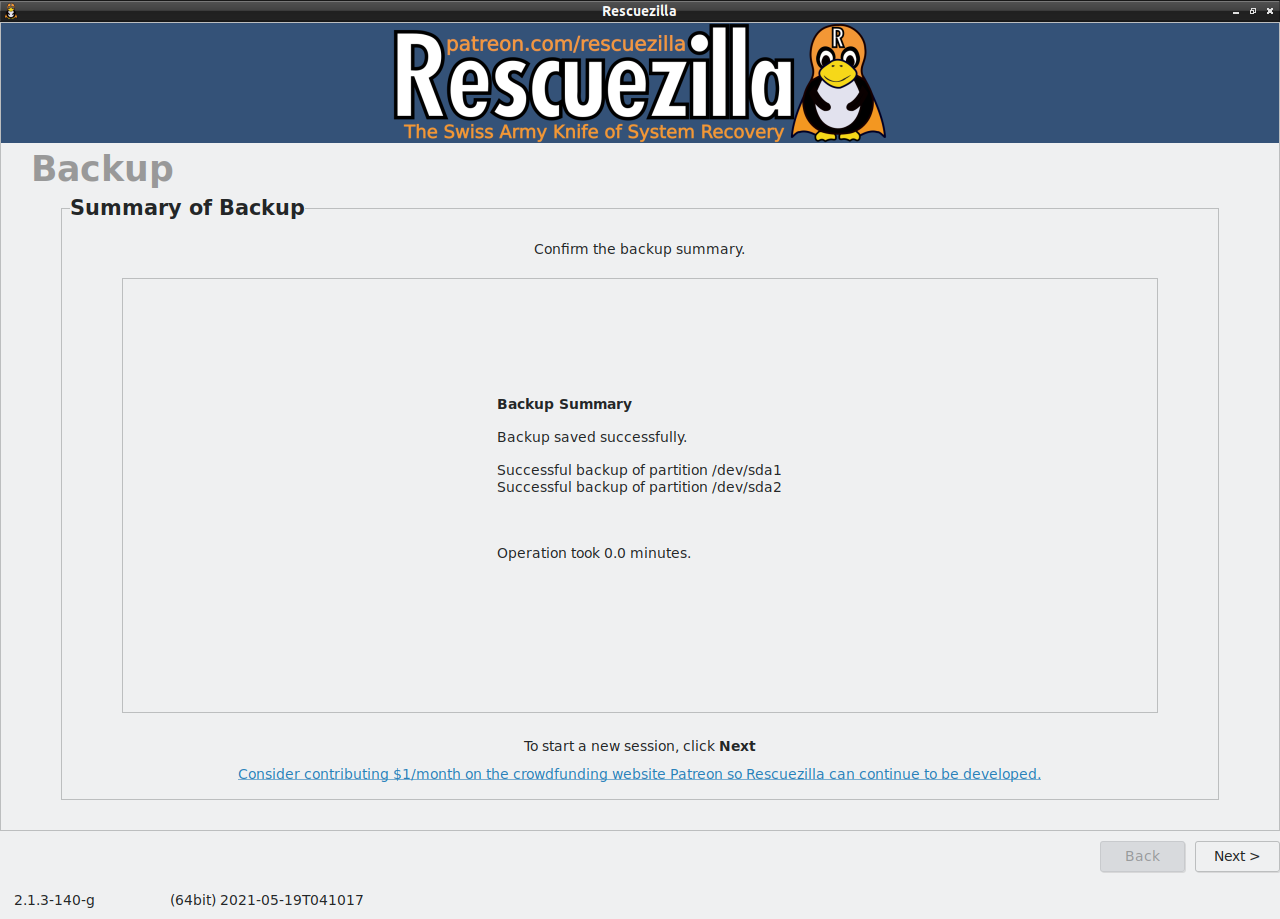
Best for: Home users and technicians who want a graphical, bootable way to image or clone a disk and recover a machine that no longer boots.
Rescuezilla runs from bootable media, supports backup, restore, and cloning, and interoperates with Clonezilla images. It is valuable before a major operating-system change, drive replacement, or as a periodic bare-metal recovery layer.
Good
- Approachable graphical workflow.
- Operates even when the installed operating system will not boot.
- Used-space imaging and compression reduce image size on supported filesystems.
- Clonezilla compatibility offers useful flexibility.
Cautions
- It is not an always-running scheduler and does not provide frequent versioned file history by itself.
- Restoring to smaller disks can fail when partitions cannot be accommodated; it does not automatically solve every shrink scenario.
- Individual-file image mounting/extraction is not its primary recovery workflow and has been described as beta.
- Encryption, RAID, BitLocker/LUKS, storage controllers, and unusual hardware require exact-machine testing.
Sensible starter setup: Create an image before major changes and periodically thereafter, store it on a labeled disconnected drive, and pair it with daily versioned file backup. Restore to a spare disk or disposable VM before trusting it.
Rescuezilla WebsiteDownloadHelp
Clonezilla: best technician imaging and deployment tool
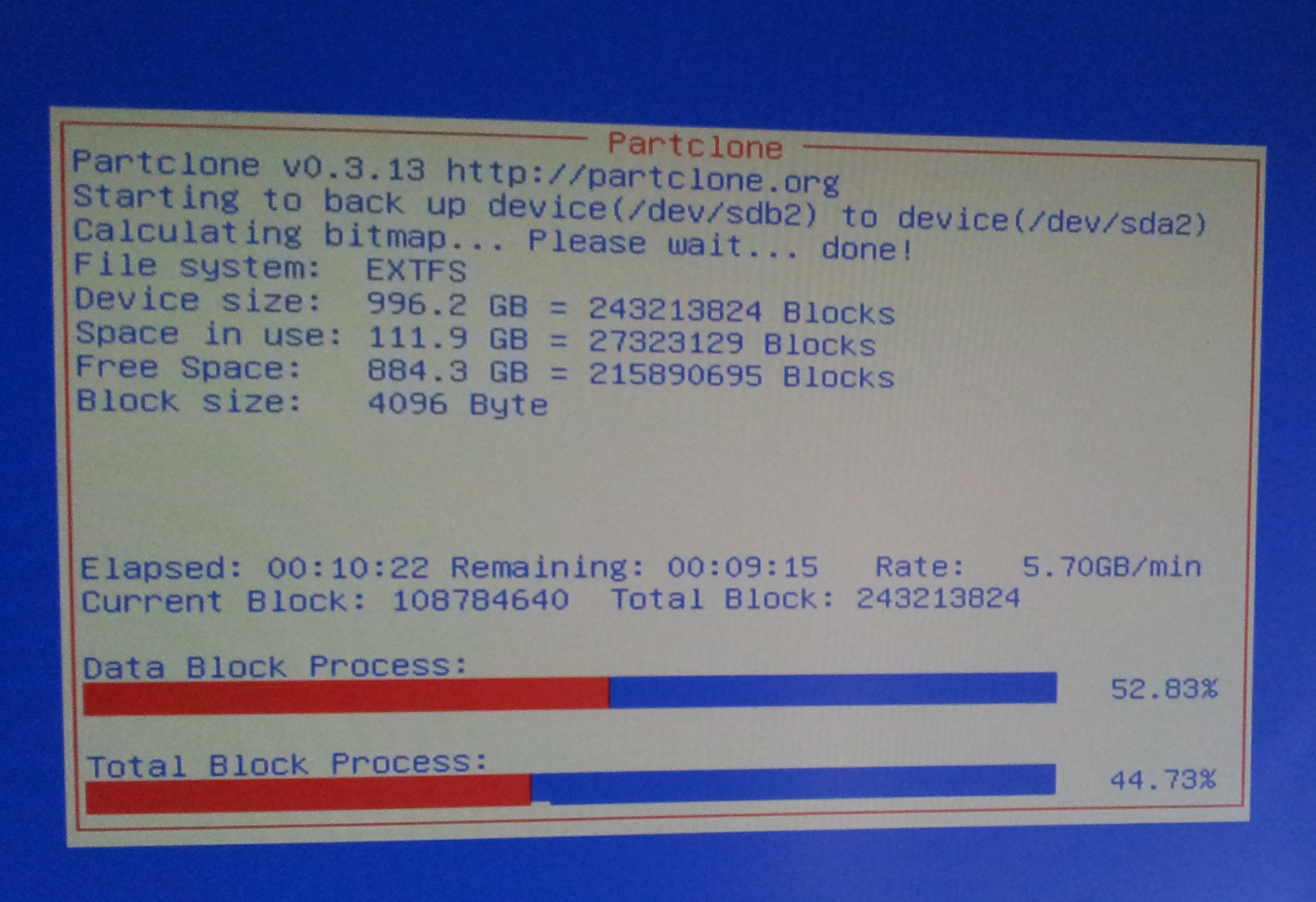
Best for: Technicians, labs, system deployment, disk migration, and users comfortable with a bootable menu-driven imaging tool.
Clonezilla supports partition and whole-disk imaging, direct cloning, multiple filesystems, BIOS/UEFI and MBR/GPT environments, local and network destinations, and mass-deployment variants. For supported filesystems it copies used blocks rather than blindly copying every sector.
Good
- Powerful and widely used imaging and cloning foundation.
- Broad filesystem and hardware-environment support.
- Clonezilla Live serves one machine; server-oriented variants support deployment at scale.
- Optional image encryption is available.
Cautions
- No differential or incremental backups.
- The source normally must be unmounted, making this an offline workflow.
- The destination partition generally needs to be at least as large as the source partition.
- Official limitations say images cannot simply be mounted/explored for convenient individual-file recovery.
- Choosing source and destination incorrectly can destroy data; slow down and verify device models, sizes, and serials.
Sensible starter setup: Use trusted current boot media, document source/destination hardware, save images to disconnected storage, validate them, and conduct a spare-drive boot test. Keep daily file-version backups separately.
Clonezilla WebsiteDownloadDocumentation
The 3-2-1-1-0 plan in practical terms
A useful modern planning mnemonic is 3-2-1-1-0:
- 3 copies of important information, including the working copy.
- 2 different storage systems or failure domains.
- 1 copy offsite so one building event does not destroy everything.
- 1 copy offline or delete-resistant so routine malware or stolen client credentials cannot erase all history.
- 0 unverified backups—a goal supported by checks and successful restore tests, not a mathematical guarantee.
Example: Florida household
- Working files on the computer.
- Daily encrypted versioned backup to a NAS or external disk.
- A second encrypted external disk rotated and disconnected at another location, or an independently credentialed cloud repository.
- Monthly restoration of several random files and an annual image/drive recovery exercise.
For hurricane preparation in Port Saint Lucie, Jensen Beach, Fort Pierce, and Vero Beach, the offsite copy must not share the same building or immediate storm risk. Encrypt portable drives. A UPS helps a NAS shut down cleanly, but a UPS is not a backup.
Example: 5–20 seat office
- Centralized client backups with failure reporting.
- Protected snapshots on local backup storage for fast recovery.
- Independently credentialed offsite replication, immutable/object-retained storage, rotated encrypted media, or tape.
- A backup administrator path that is separate from ordinary workstation administration where practical.
- Quarterly disaster exercises measuring recovery time—not merely checking green dashboard icons.
How to test a restore
Monthly: five-file sample
- Restore new, old, deleted, large, and unusual-name files to an alternate folder.
- Open them and, where appropriate, compare hashes.
- Check dates, permissions, ownership, and application readability.
Quarterly: clean-machine recovery
- Use a clean virtual machine, spare profile, or separate test system.
- Install the software from trusted sources.
- Recover using only the documented endpoint and escrowed password/key information.
- Record missing steps and fix the documentation.
Annually: disaster or bare-metal exercise
- Restore an image to a spare drive or rebuild the operating system and recover data.
- Boot the restored system when imaging is part of the plan.
- Validate accounting, email, databases, and line-of-business applications inside an isolated test environment.
- Measure actual recovery time and compare it with how long the household or business can tolerate being down.
Frequently asked questions
Which is best for an ordinary Windows home user?
Kopia is our balanced recommendation. Duplicati is an approachable alternative if the user accepts its mixed-license status and follows disciplined monitoring, configuration export, and restore testing. Add Rescuezilla for periodic imaging when faster full-drive recovery matters.
Which is best for Linux?
Pika is simplest for GNOME personal files; Back In Time provides transparent snapshots; Borg excels with a controlled SSH host; restic is strongest when cross-platform clients and object storage matter.
Is Rescuezilla or Clonezilla enough by itself?
Usually not. Images are excellent for drive failure and full-machine recovery, but inconvenient for frequent versions and everyday single-file recovery. Pair periodic images with daily versioned file backup.
Does encryption stop ransomware?
No. Encryption protects confidentiality. If an infected client can delete the encrypted repository, it may erase every version. Add separate credentials, protected snapshots, object retention, append-only access, and/or a disconnected copy.
Is a NAS a backup?
A NAS can hold backups. Data merely stored or synchronized there is not automatically protected. Use versioned backup, protected NAS snapshots, separate administration, offsite replication, or disconnected media.
Is OneDrive, Dropbox, or Google Drive a backup?
Sync is useful and may provide version history, but it propagates changes and shares account risk. It should not be the only independent recovery copy.
What if I forget the repository password?
Proper encryption may leave no recovery path. Keep credentials in a secure password manager and a protected offline recovery record, then test that record during clean-machine recovery.
Can these tools safely back up QuickBooks, databases, virtual machines, or email while running?
Not automatically in every configuration. Use application-consistent dumps, VSS/filesystem/VM snapshots, or vendor-supported hooks and verify the restored application in isolation.
How often should restores be tested?
A practical baseline is monthly file samples, quarterly clean-machine recovery, and annual disaster/bare-metal testing. Critical businesses should test more frequently.
Is RAID a backup?
No. RAID helps availability after certain drive failures. It does not independently protect against accidental deletion, malware, corruption, theft, fire, or administrator mistakes.
Our final recommendations
- Choose Kopia when you want a graphical, encrypted, cross-platform file-backup system.
- Choose restic when you value a robust cross-platform engine and are comfortable assembling scheduling, alerts, and hardened storage.
- Choose Borg for Linux/Unix to a carefully controlled SSH repository.
- Choose Duplicati for its easy web workflow only after understanding its mixed-license status and practicing disaster recovery.
- Choose UrBackup when one administrator needs central visibility across several PCs.
- Choose Pika or Back In Time for straightforward Linux desktop backups, according to whether encrypted Borg storage or transparent rsync snapshots matter more.
- Choose Rescuezilla or Clonezilla as an imaging layer, not your only backup.
- Choose Bareos only when formal infrastructure is justified and somebody will own it.
The action to take today: Pick one versioned backup workflow, create its first backup, protect or disconnect one copy, store the recovery secret safely, and put a five-file restore test on the calendar.
Sources and methodology notes
Project facts were checked against official websites, current documentation, repositories, and license files on July 29, 2026. Community counts came from the GitHub REST API except Pika Backup, whose canonical GNOME GitLab API figures are labeled separately. The IT Guys did not treat stars as product-quality scores and did not perform full comparative performance benchmarks. We did download and execute the official current restic and BorgBackup Linux binaries to create the CLI previews. Security guidance is consistent with the CISA #StopRansomware Guide, which recommends offline encrypted backups and regular availability/integrity testing in a disaster-recovery scenario.
Need help designing a backup and recovery plan for a home or small business in Port Saint Lucie, Jensen Beach, Fort Pierce, or Vero Beach? Contact The IT Guys. We can help identify what must be protected, separate credentials and storage correctly, and—most importantly—prove the restore process before an emergency.