

Page 2: Best graphical backup tools
These are the most approachable options for readers who prefer a guided interface. Ease matters, but it cannot replace a protected destination, monitoring, and a practiced restore.
Duplicati: the easiest web-based on-ramp—with a 2026 licensing warning
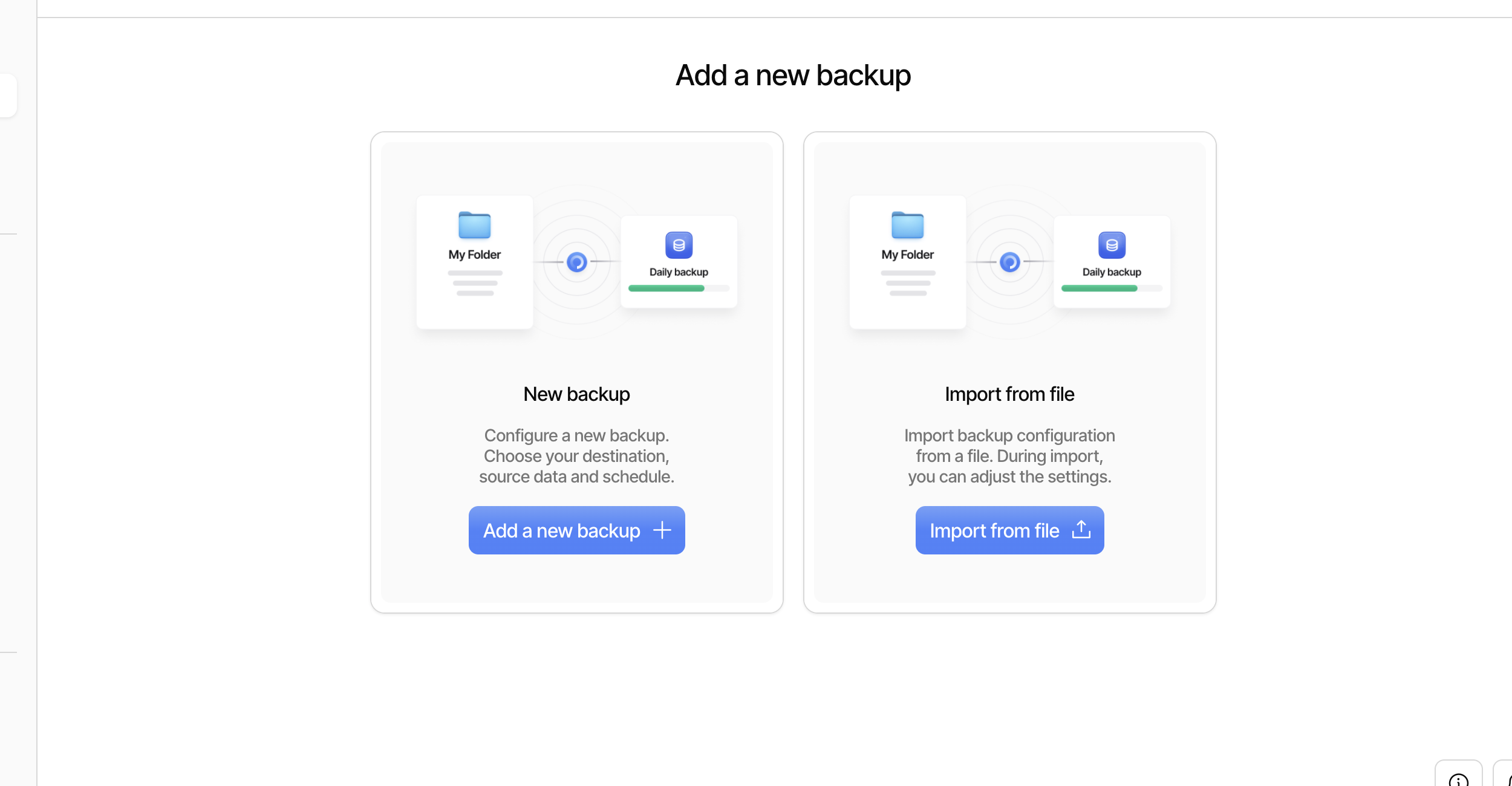
Best for: Windows, macOS, or Linux users who want a guided web interface, schedules, encryption, retention, and a wide choice of cloud or network destinations.
Duplicati breaks backup configuration into understandable steps: choose files, choose storage, set encryption, schedule jobs, and select retention. It supports block-based incremental uploads, compression, AES-256 or GPG encryption, and numerous remote backends. It can be run as a service, tray application, web interface, or command-line process.
proprietary/ directory. We therefore classify current Duplicati as an open-source core/mixed-license product, not an entirely open-source codebase. Readers who require a fully FOSS stack should prefer restic, Kopia, Borg, Pika, Back In Time, UrBackup, Rescuezilla, Clonezilla, or Bareos.What we like
- One of the friendliest routes from “I need backups” to a scheduled encrypted job.
- Broad cloud, SFTP, WebDAV, NAS, and provider-specific destination support.
- Useful retention controls and convenient file restoration.
- Good fit for modest home and small-office datasets when jobs are watched and restores are tested.
What to watch
- The local database makes routine work fast, but recovery without it may require rebuilding state. Export configuration securely and rehearse a clean-machine recovery.
- The local web page is an administrative interface. Use a strong access password; do not casually expose it to the internet.
- A green scheduled-job indicator is not proof of a usable restore. Review warnings and perform file restores.
- Large repositories and remote-provider quirks can make database reconstruction and maintenance slow.
Sensible starter setup: An encrypted remote destination, a strong UI password, moderate retention, reports for every run, a securely stored configuration export, and a quarterly clean-profile restore test.
Duplicati WebsiteDownloadDocumentation
Kopia: our best graphical all-rounder
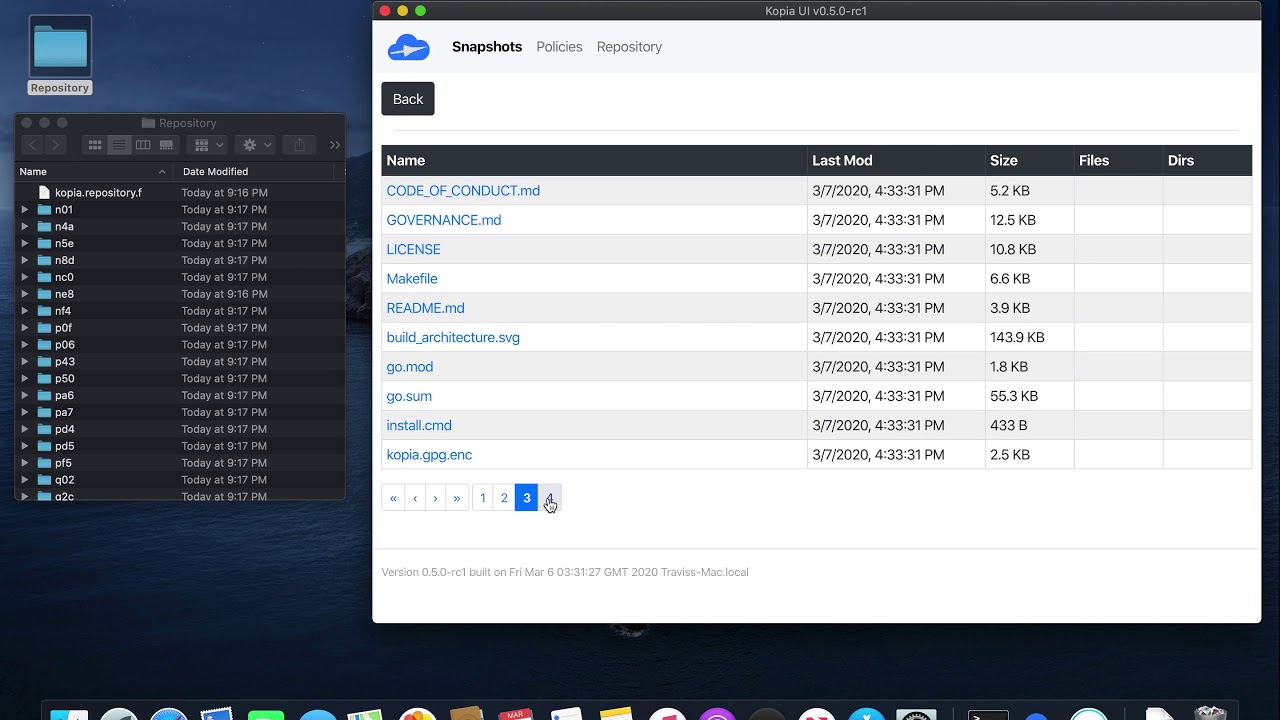
Best for: Home users, consultants, and small offices wanting a modern GUI plus command-line automation, mandatory encryption, policy-based snapshots, and broad destination support.
Kopia can store snapshots on local disks, NAS storage, SFTP, WebDAV, S3-compatible services, Backblaze B2, Azure, Google Cloud Storage, and an optional Kopia repository server. Its repository is always encrypted. Content-addressed chunks provide deduplication across snapshots, and policies control scheduling, retention, compression, and exclusions.
What we like
- GUI and CLI cover both approachable setup and serious automation.
- Mandatory end-to-end repository encryption reduces the risk of accidentally creating an unencrypted cloud backup.
- Strong destination flexibility and built-in maintenance/verification concepts.
- Browse, mount, selective restore, and whole-snapshot restoration options.
What to watch
- Kopia warns that a directly shared repository uses one password and does not provide per-user access control. Do not share one repository across people or machines that do not fully trust one another.
- A forgotten repository password can make the backup permanently unrecoverable. Keep an offline recovery record.
- It is a file snapshot tool, not a whole-disk imager.
- Do not describe every rclone-backed destination as equally mature; the project labels some integration paths experimental.
Sensible starter setup: One repository per trust boundary, a native backend where available, a strong escrowed password, a dedicated storage credential, storage-side snapshots or retention where supported, and scheduled verification review.
Kopia WebsiteInstall KopiaDocumentation
Pika Backup: simplest for GNOME personal files
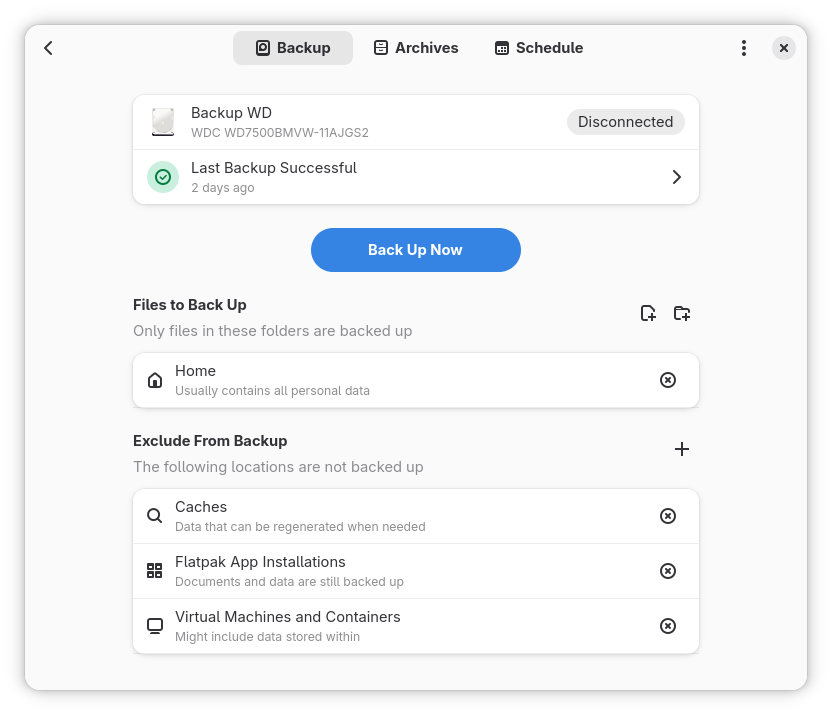
Best for: GNOME/Linux users who want an easy Borg-powered interface for personal files on a USB disk or remote repository.
Pika makes Borg’s encrypted and deduplicated repository model accessible through a clean GNOME application. It can schedule backups, browse archives, and restore files without asking an ordinary desktop user to design Borg commands.
Good
- Very approachable Linux desktop experience.
- Encrypted, deduplicated backups powered by Borg.
- Local and remote repository support, scheduling, archive browsing, and selective restore.
Cautions
- The project explicitly says it protects personal data and does not provide complete system recovery.
- Linux/GNOME only.
- The friendly interface does not eliminate the need to preserve the repository password and test recovery on a clean profile.
Sensible starter setup: Daily encrypted personal-file backup to a rotated external drive or protected remote repository, with one disconnected or offsite copy.
Pika BackupInstall from FlathubHelp
Back In Time: transparent, browseable Linux snapshots
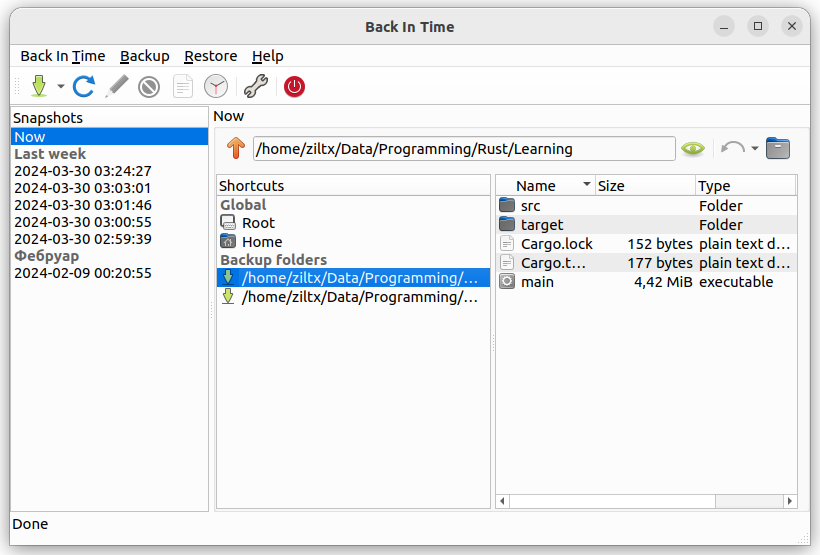
Best for: Linux users who value transparent rsync-style snapshots that can be browsed using ordinary file tools.
Back In Time copies changed files and hard-links unchanged files into each new snapshot. This creates familiar dated folders without content-defined chunk storage. Local and SSH-remote destinations are supported, and restoring can be as simple as browsing a snapshot.
Good
- Easy-to-understand file layout and low tool lock-in.
- Graphical interface plus command-line operation.
- Efficient storage for unchanged files through hard links.
Cautions
- Linux only and file-focused; it is not a bare-metal imaging tool.
- It does not advertise built-in encrypted repository storage comparable to Kopia, restic, or Borg. Protection depends on the destination and transport.
- An always-mounted writable USB disk can be erased or encrypted by malware. Rotate/disconnect media or use a protected remote server.
- Hard-link snapshots save duplicate files, but they are not block-level deduplication.
Sensible starter setup: Daily snapshots to an external disk that is disconnected when not backing up, or to a dedicated SSH account whose server adds protected snapshots and offsite replication.