

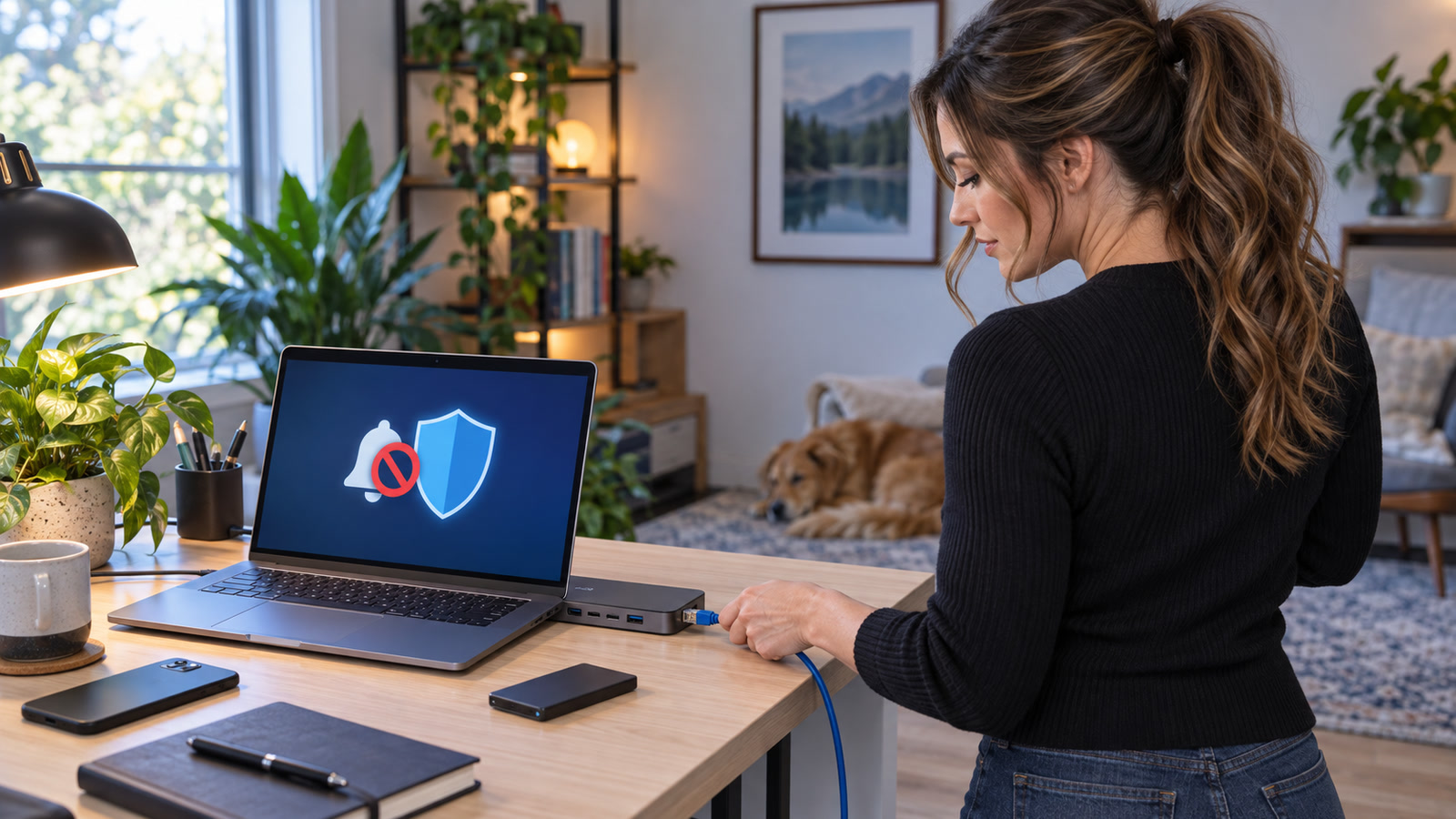
Practical guidance: You clicked the warning, called the number, installed a remote-support app, entered a password, or sent money. At that point, the question is no longer “How do I hide the pop-up?” It is “What did the other person gain, and how do I contain it without destroying useful evidence?” The first hour should focus on stopping access, protecting accounts and money from a different trusted device, preserving a clear record, and deciding whether the affected computer can be cleaned or should be professionally rebuilt.
Reporting cutoff: 1:16 p.m. EDT (17:16 UTC) on October 15, 2026. The official guidance and interface descriptions below were checked in the local source snapshots listed at the end.
If the scammer may still be connected, stop here
- Practical guidance: Disconnect the affected computer from the network now: turn off Wi-Fi, unplug Ethernet, or power off the router only if that is the fastest safe way to break the session.
- Practical guidance: Do not argue with the caller or announce your response plan. Hang up. Do not accept a “refund,” “supervisor,” or follow-up recovery call.
- Practical guidance: Do not keep banking, shopping, emailing, or changing passwords on that computer. Use a different trusted phone, tablet, or computer.
- Practical guidance: For a work-managed device, stop self-remediation after disconnecting. Contact your employer’s known IT or security channel; do not delete software, logs, messages, or files unless they direct you.
Microsoft warns that scammers commonly ask victims to install applications that provide remote access. Its post-scam guidance says to uninstall scam-requested applications, run a full security scan, apply updates, change passwords, contact the card provider after payment, and consider resetting a device that was accessed.[1]
Use this decision tree: what actually happened?
Phone readers: swipe the decision table left to see every column.
| What happened | Risk boundary | First-hour response |
|---|---|---|
| Triage boundary: You only clicked the notification or opened the webpage. You did not download, run, install, sign in, pay, or allow control. | Triage boundary: This is not proof of device compromise. The incident may still be limited to a malicious page or website-notification permission. | Triage boundary: Close the page without using its controls. Revoke the site’s notification permission as one short containment step, then watch for downloads, new apps, redirects, or account alerts. Use our browser-notification cleanup guide for the permission steps rather than repeating them here.[4][5][6] |
| Triage boundary: You downloaded a file but did not open it. | Triage boundary: The file may be inert until opened, but it should not be trusted. | Triage boundary: Disconnect if anything else unusual is happening. Record the filename and source, do not open it, and scan the device. Delete or quarantine it only after preserving the basic details needed for a report. |
| Triage boundary: You ran an installer, approved an administrator prompt, installed a browser extension, or allowed a support tool. | Triage boundary: Treat the computer as potentially controlled or altered. | Triage boundary: Disconnect it immediately, preserve evidence, identify the installed tool, and move account recovery to a clean device. Plan a full scan and a professional assessment or reset if trust cannot be restored.[1] |
| Triage boundary: You shared a screen but did not allow control. | Triage boundary: Information visible on screen may have been observed, but screen sharing alone does not establish what was recorded or reused. | Triage boundary: End sharing, list what was visible, protect the specific exposed accounts, and contact a relevant organization through its known official channel if its information was on screen. |
| Triage boundary: You typed or read out a password, recovery code, verification code, or card number. | Triage boundary: Treat only the account or card involved as potentially exposed; this does not establish that any other account was reached. | Triage boundary: From a different trusted device, use the provider’s known official app or independently typed site to change or recover the account and review its security settings. For a card, contact the card provider through a number on the card, its official app, or a statement. |
| Triage boundary: You paid by credit card. | Triage boundary: Microsoft’s post-scam guidance specifically addresses credit-card payments. | Triage boundary: Call the credit-card provider through a known official number to contest the charge. Microsoft says the provider may cancel and replace an affected card.[1] |
Who should treat themselves as affected?
Treat as affected
- Triage boundary: The computer where remote access or unknown software was allowed.
- Triage boundary: An account whose password, recovery code, or active session was visible or entered.
- Triage boundary: Email accounts that can reset another exposed account.
- Triage boundary: Files and cloud services that were open or visibly reachable during the session.
- Triage boundary: A card that was shown, typed, read aloud, or charged.
Not automatically affected
- Triage boundary: Every device on the network merely because one computer displayed a warning.
- Triage boundary: Every online account, if it was never entered, visible, stored, or reachable from the affected session.
- Triage boundary: A computer on which the page was only viewed and no file, extension, app, permission, credential, or payment was involved.
- Triage boundary: A card that was never shown, typed, read aloud, or charged.
Triage boundary: These are triage boundaries, not guarantees. Widen the response only when you find a concrete sign such as unfamiliar software, an unknown sign-in, a changed recovery method, a disabled security control, or an unexplained transaction.
The first-hour response, in order
1. Break the connection before investigating
Practical guidance: If remote control may still be active, disconnect Wi-Fi and Ethernet. Do not rely only on closing the visible window: a remote-support tool may remain active. If the operator still controls the pointer, files are rapidly changing, or the network connection cannot be broken, power off the computer. On a work-managed device, use the organization’s known IT or security channel for the next step.
2. Preserve a simple evidence packet
Practical caution: Before uninstalling tools or clearing browser history, use your phone to photograph only what is already visible. Do not reconnect the affected computer to collect more. Make a short incident note with:
- Practical caution: The date, approximate start and stop times, and how contact began.
- Practical caution: The webpage domain, pop-up wording, email address, caller number, displayed company name, and claimed technician name.
- Practical caution: The remote-access app, download filename, installer name, browser extension, session code, or support ticket shown.
- Practical caution: The specific password, code, account, document, or screen that may have been exposed.
- Practical caution: For a card payment, the amount, date, merchant or recipient shown, and receipt or transaction reference.
- Practical caution: What you directly observed the other person open or change.
Practical caution: Keep this as a simple factual note for the provider, your organization, or a technician. It is not a technical collection process, and it should not delay stopping active access or contacting a card provider.
3. Move account recovery to a clean device
Practical guidance: Use a different trusted device that was not controlled during the incident. Start with the email account that receives password resets, then financial accounts, work accounts, cloud storage, shopping accounts, and any other login whose password was exposed or reused. Use each provider’s official app or type its known address yourself; do not follow a link from the scam message.
- Practical guidance: Change the exposed password to a new, unique password. If you cannot sign in, use the provider’s official recovery process.
- Practical guidance: Review recent sign-ins, devices, active sessions, recovery email addresses, phone numbers, passkeys, authenticator registrations, and app passwords. Sign out or revoke anything you do not recognize.
- Practical guidance: Turn on multifactor authentication with a method you control. Save new recovery codes somewhere the affected computer cannot reach.
- Practical guidance: Check for quiet persistence. Microsoft specifically tells people recovering a compromised Microsoft account to review connected accounts, forwarding, and automatic replies after changing or resetting the password.[3]
- Practical guidance: Search Sent, Deleted, Trash, rules, filters, delegates, and forwarding for activity you did not create. Warn contacts through a known channel if messages were sent in your name.
- Practical guidance: If the exposed password was reused, replace it everywhere it was reused. Do not make small variations of the old password.
4. Contact the relevant provider through a known official channel
Practical caution: Use the number printed on the back of the card, inside the provider’s official app, on a statement, or on a website you reached independently. Microsoft says a victim who paid should call the credit-card provider to contest the charge and explains that the provider may cancel and replace an affected card.[1]
- Practical caution: Credit card: report what happened, contest the charge, and ask the card provider whether it will cancel or replace the affected card.
- Practical caution: Any other payment or identity concern: contact the relevant institution or provider through a known official app, statement, contract, or independently typed website and ask it to explain the options it supports. This article does not prescribe modality-specific recovery steps.
5. Contain the remote-access app without erasing the story
Practical guidance: After the live connection is broken and you have recorded the basic visible details, identify the exact app. A legitimate remote-support product is not proof of malware, but an installation made at a scammer’s direction was not authorized by you. Microsoft tells victims to uninstall applications the scammer asked them to install and to consider resetting a device that the scammer accessed.[1]
- Practical guidance: Record the product name and publisher shown.
- Practical guidance: Do not reopen the app or sign in to an account the scammer created.
- Practical guidance: Remove the scam-requested app after recording those basic details. If it belongs to your employer or legitimate IT provider, stop and use that administrator’s known channel.
- Practical guidance: Review installed applications, browser extensions, startup items, and local user accounts for unfamiliar changes from the same time window.
- Practical guidance: If administrator access was granted, security settings changed, or symptoms continue, do not treat one uninstall as proof of trust. Microsoft says to consider resetting a device that a scammer accessed.
For a separate preventive audit after the incident is contained, see Forgotten Remote-Support Software Can Become a Back Door.
6. Scan Windows, then decide whether scanning is enough
Microsoft’s Windows Security guidance says a Full scan scans every file and program on the device. It also offers Microsoft Defender Antivirus (offline scan), which restarts into the Windows Recovery Environment and scans without loading Windows; Microsoft presents that option for situations where you are concerned the device was exposed or want to scan without an internet connection.[2]
- Practical guidance: Keep the device isolated until you have a response plan.
- Practical guidance: If using Windows Security, open it from the Start menu—not from the scam page—and review Virus & threat protection, security-intelligence status, scan options, and Protection history.
- Practical guidance: Run a Full scan. If there are continuing symptoms or concern about software hiding while Windows is running, use Microsoft Defender Antivirus (offline scan) after saving open work; the computer will restart.[2]
- Practical guidance: Apply legitimate operating-system and security updates when it is safe to reconnect. Microsoft includes updates in its post-scam response steps.[1]
- Practical guidance: Record the scan type, time, result, and any detection or remediation name.
Practical guidance: A clean scan is useful, but it is not a universal clearance certificate. It may not prove that a remote operator failed to copy data, read a password, change an account, or create access through a legitimate tool. If administrator access was granted, security controls were changed, sensitive data was reachable, or symptoms continue, a reset or professionally supervised rebuild may be the more defensible recovery path. Microsoft explicitly says victims who gave scammers device access should consider resetting it.[1]
7. Handle work-managed devices as incidents, not DIY cleanups
Stop condition: If the device or account belongs to an employer, school, nonprofit, government office, client, or another organization, stop the do-it-yourself cleanup and contact its known IT or security channel. State what you installed, what was visible, and whether access may still be active. Follow that organization’s instructions; this guide does not define its incident response.
Good response versus costly shortcuts
Good
- Practical guidance: Disconnect active remote access before investigating.
- Practical guidance: Use a different trusted device for account recovery.
- Practical guidance: Write down the domain, phone number, app name, timeline, and any card receipt or transaction reference.
- Practical guidance: Contact the card provider or other relevant institution through a known official channel.
- Practical guidance: For a managed device, contact the organization’s known IT or security channel.
- Practical guidance: Treat a scan as a malware check, not proof about what a person viewed or changed.
- Practical guidance: Consider Microsoft’s reset option if the scammer accessed the device.
Bad
- Practical caution: Keep the remote session open while searching the same computer for advice.
- Practical caution: Change passwords on the computer the scammer may still control.
- Practical caution: Clear the app and browser history before recording basic visible details.
- Practical caution: Wait for a malware scan before contacting the card provider or relevant institution.
- Practical caution: Pay a second caller who promises a refund or recovery.
- Practical caution: Assume uninstalling one app reversed screen viewing or account changes.
- Practical caution: Hide a managed-device incident from the organization’s known IT or security contact.
Three realistic examples
Example 1: A file downloaded, but it was never opened
Illustrative example: The victim clicked the warning and a file appeared in Downloads, but no installer was opened and no permission prompt was approved. The victim records the filename and source, does not open it to “see what it is,” and scans the computer. If there are no other signs of interaction or compromise, this remains a narrower case than an installed remote-control tool.
Example 2: A “technician” used remote control and opened email
Illustrative example: The victim installed a support app and watched the caller open Event Viewer, email, and a card-provider sign-in page. The victim disconnects the computer, records the app and session details, and uses a clean phone to protect email and contact the card provider through its known official channel. Because email was visible, the response includes sessions, recovery methods, forwarding, rules, and sent messages—not only a password change. The device remains isolated for scanning and a decision about Microsoft’s reset option.[1][2][3]
Example 3: The victim paid and then received a “refund” call
Illustrative example: The first payment does not make the second caller legitimate. The victim ends contact, calls the card issuer through the number on the card, contests the charge, asks about replacement, saves receipts and call details, and refuses further payment. The computer response continues separately; the financial call does not wait for the malware scan.[1]
Frequently asked questions
Should I turn off the computer?
Stop condition: Disconnecting Wi-Fi and Ethernet can end the network session without using controls inside the remote-support app. Power off if active control continues or you cannot break the connection another way. For a work-managed device, stop there and contact the organization through its known IT or security channel.
Is uninstalling the remote-support app enough?
Practical guidance: No. It is an important containment step, and Microsoft recommends removing scam-requested apps, but it does not reverse credentials disclosed, data viewed, files copied, payments sent, account settings changed, or other software installed.[1]
If Windows Security finds nothing, am I safe?
Practical guidance: Not necessarily. A Full scan checks files and programs, and Defender’s offline scan can examine the computer without loading normal Windows.[2] Neither result proves that a human operator did not view data, use an already signed-in account, or change cloud settings. Base the reset-or-rebuild decision on what access was granted and what the device could reach, not only on one scan result.
Which password should I change first?
Practical guidance: Start with the email account that can reset other accounts, unless an actively endangered financial or work account needs an immediate lock. Work from a clean device, use unique passwords, review sessions and recovery methods, and check forwarding and connected-account settings. Microsoft includes those settings in its compromised-account recovery guidance.[3]
What if the caller only viewed my screen?
Practical caution: List what was visible. Screen-only access can still expose names, balances, email subjects, customer information, one-time codes, documents, or passwords typed during the session. Protect the accounts and people connected to that information even if mouse control was never granted.
Should I call the number in the warning to cancel?
Practical guidance: No. Microsoft says its error and warning messages never include phone numbers and advises people not to call a number in a pop-up or error message.[1] Find the real company through a statement, official app, contract, or independently typed website.
Do I need to warn my contacts?
Practical guidance: Warn them through a known channel if the scammer sent messages, accessed a mailbox, copied an address book, or impersonation is reasonably possible. On a work account, coordinate wording and recipients with the organization’s incident lead.
Related guides from The IT Guys
- Clean Up Browser Notifications Before They Turn Into Scam Alerts — use this only for the browser-permission cleanup step.
- Verify Before You Allow Remote Support — prevention and verification before a legitimate support session.
- Forgotten Remote-Support Software Can Become a Back Door — a post-incident inventory of remote tools and authorized access.
- Microsoft 365 Email Account Hacked? Contain It Before Fraud Spreads — deeper business-mailbox containment.
Your next action
Practical guidance: If remote access may still be active, disconnect the affected computer now. Then use a different trusted device and start the relevant official path: the organization’s known IT or security channel for a managed device, the card provider through the number on the card or official app after a card payment, another relevant institution through its known official channel for a different concern, or the account provider’s official recovery route for an exposed password or code.
Sources
- Microsoft Support — Protect yourself from tech support scams
- Microsoft Support — Virus and Threat Protection in the Windows Security App
- Microsoft Support — How to recover a hacked or compromised Microsoft account
- Google Chrome Help — Use notifications to get alerts
- Microsoft Support — Manage website notifications in Microsoft Edge
- Apple Support — Customize website notifications in Safari on Mac