

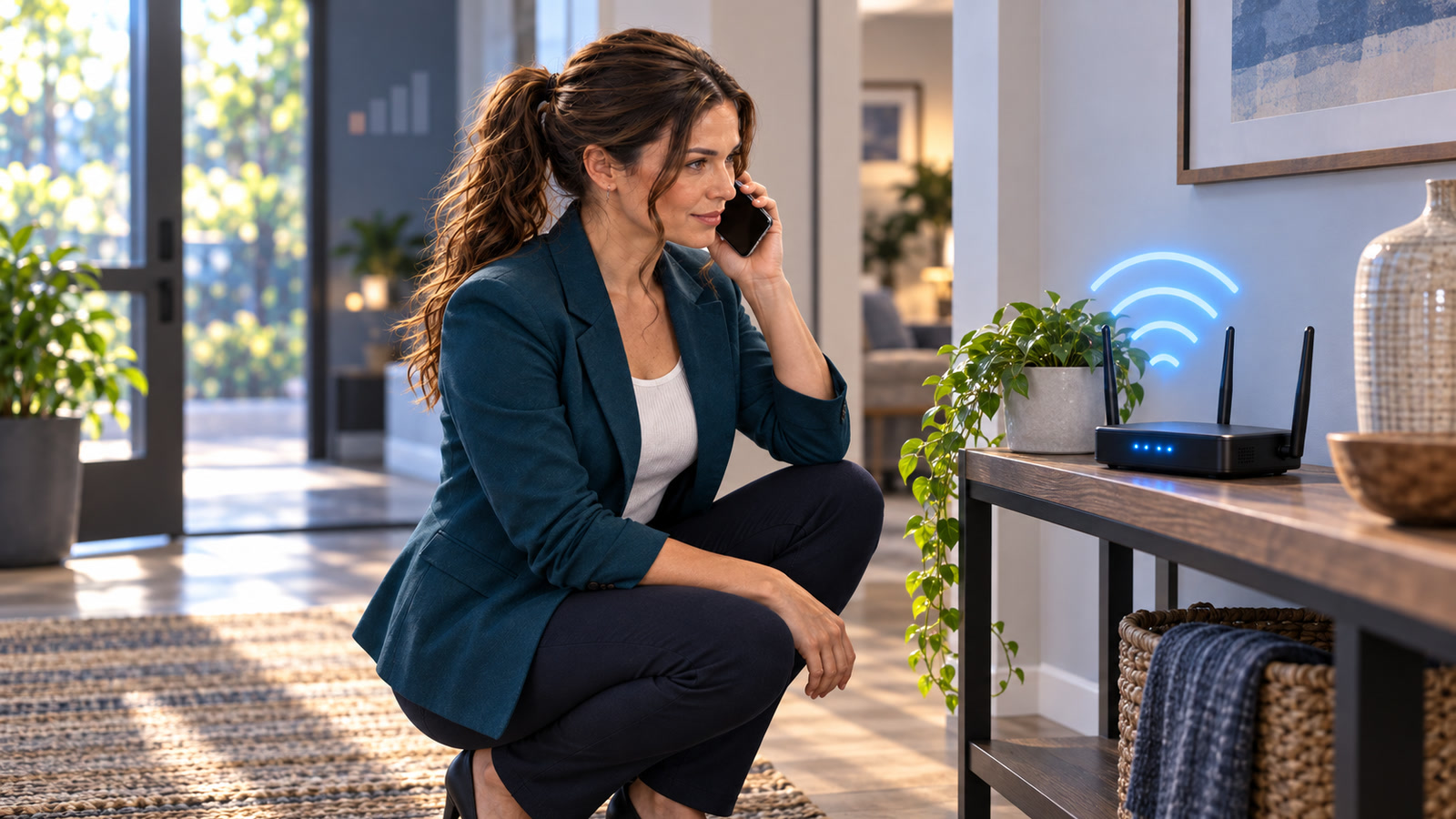
If calls drop inside your home or office even though Wi-Fi works, the phone may not be broken. Carrier Wi-Fi Calling can route ordinary calls through a working Wi-Fi internet connection when mobile coverage is weak, but it must be supported, enabled, provisioned, and tested before you count on it.12
Research checked: September 23, 2026 at 1:09 p.m. EDT (17:09 UTC). Carrier menus, eligibility, billing, roaming rules, and emergency behavior can vary by account, phone, software version, and location; recheck your carrier before travel or after changing devices.
The problem: strong Wi-Fi, weak cellular service
If mobile coverage is poor indoors while the local Wi-Fi internet connection works, Wi-Fi Calling is designed for that narrow gap: it uses the carrier feature tied to your normal mobile number, rather than turning a separate messaging app into a substitute phone service.34
The expensive symptom is not always “no service.” It can be one-way audio, calls that never ring, verification calls that time out, voicemail arriving without a ring, or employees walking outside to speak with customers. Replacing the handset first can waste money when the actual limit is coverage, account provisioning, Wi-Fi quality, or the registered emergency address.
Who this guide affects—and who it does not
Affected
- Homes with usable broadband but one or two indoor cellular bars.
- Small offices where mobile calls fail in interior rooms.
- People who changed phones, SIMs, eSIMs, carriers, or service addresses.
- Dual-SIM users who need to enable the correct line.
- Travelers who intend to use the feature and have checked carrier rules.
Not fixed by this feature
- An internet outage, failed router, dead modem, or building-wide power loss.
- A suspended mobile account or unsupported phone/plan.
- Poor Wi-Fi coverage in the room where the call is made.
- Every app-based calling service; Google Voice, WhatsApp, Teams, and similar apps have their own rules.
- Every international location or number type; restrictions and charges can apply.23
Before changing settings: check the four dependencies
Confirm the intended line is active
Identify which SIM or eSIM owns the number. On an iPhone with multiple SIMs, Apple directs you to choose the line before enabling Wi-Fi Calling.1
Prove Wi-Fi internet works in the call location
Load a fresh webpage or run a normal video call from the exact room. A phone can show full Wi-Fi bars while the internet path is captive, filtered, overloaded, or offline. T-Mobile explicitly requires working Wi-Fi internet and notes that corporate networks may need additional accommodation.4
Step-by-step setup
iPhone
- Open Settings.
- Tap Cellular.
- If the phone has more than one line, choose the correct SIM or eSIM.
- Tap Wi-Fi Calling.
- Turn on Wi-Fi Calling on This iPhone.
- Enter or confirm the emergency-services address when prompted.
Apple’s current guide uses that sequence and says “Wi-Fi” appears after the carrier name when the feature is available and active.1
Android
- Open Settings.
- Try Network & internet → SIMs → your carrier SIM → Wi-Fi Calling.
- On some Samsung and carrier builds, look under Connections or search Settings for Wi-Fi Calling.
- Enable the feature and complete any emergency-address prompt.
- If the option is absent, do not install a random calling app as a “fix”; check device compatibility and account provisioning with the carrier.
Google documents the Network & internet path but cautions that menus and support depend on the carrier; T-Mobile documents a Connections path for its supported Android devices.24
Stop before you trust the default address
Practical safety guidance: if the phone was activated at an old home, moved between offices, inherited from an employee, or used at a temporary location, verify the registered address instead of assuming it is current. Update it through the carrier’s supported Wi-Fi Calling or account screen. Do not assume device location silently replaces the registered address in every failure mode.1345
How to test it without calling 911
Record the starting state
Note the carrier line, Wi-Fi network name, room, phone model, software version, and emergency address shown by the carrier. Do not put the street address in a shared troubleshooting ticket unless it is necessary and access-controlled.
Force a controlled Wi-Fi Calling test
For a brief test, enable airplane mode, then manually turn Wi-Fi back on. Wait for the carrier’s Wi-Fi Calling indicator. This removes a strong cellular path from the test, but behavior still varies by carrier and device; disable airplane mode immediately after the test.
Place an ordinary outbound call
Call a consenting person or a non-emergency business line. Confirm two-way audio for at least a minute while walking only within known-good Wi-Fi coverage. Watch whether the Wi-Fi Calling indicator remains present.
Test inbound ringing and text delivery
Have the other person call back and send a normal text. Verify the correct phone rings, voicemail behaves normally, and the message arrives. Do not use a one-time login code as the first test because a delayed code can lock an account.
Restore normal radio settings
Turn airplane mode off, leave Wi-Fi on, and repeat one ordinary call near the boundary between good and weak cellular service. Apple says a call may switch to the carrier’s cellular network using VoLTE when Wi-Fi is lost, if that capability is available and enabled; do not assume every handoff will be seamless.1
Emergency-calling caution: the address is part of the safety system
When mobile service is available, Apple says iPhone emergency calls are routed through cellular service; when cellular service is unavailable and Wi-Fi Calling is enabled, emergency calls may use Wi-Fi, and device location information may be used to aid response.1
Carrier guidance is deliberately cautious. AT&T says E911 may not be as reliable as regular 911 service and tells customers to keep the Wi-Fi Calling location address current.3 T-Mobile says the registered address may be transmitted to the 911 center and that callers may still need to provide their current location.4
The FCC advises wireless 911 callers to state the emergency location immediately and be ready to provide the callback number.6 Practical guidance: in a real emergency, give the dispatcher your current street address, suite/unit, floor, and callback number as soon as you can. Do not call 911 merely to test Wi-Fi Calling.
Good and bad ways to use Wi-Fi Calling
Good
- Enable it on a supported line before coverage becomes urgent.
- Keep the registered emergency address current.
- Test inbound, outbound, text, voicemail, and one normal handoff.
- Document which office Wi-Fi networks allow it.
- Keep a separate internet and power continuity plan.
Bad
- Assume a Wi-Fi icon means the call is using Wi-Fi Calling.
- Enter a billing address that is not the actual service location.
- Use a 911 call as a routine feature test.
- Assume it survives an ISP, router, or power outage.
- Assume international use is free or permitted everywhere.
Symptoms, likely layer, and next check
Phone readers: swipe the table left to see every column.
| Symptom | Likely layer | Next check | Do not do first |
|---|---|---|---|
| No Wi-Fi Calling menu | Carrier, plan, device, software, or line provisioning | Confirm compatibility for the exact model and line; contact the carrier | Factory-reset the phone |
| Menu is on, but no carrier Wi-Fi indicator | Activation, address validation, Wi-Fi path, VPN, or carrier service | Reopen the emergency-address screen; test another trusted Wi-Fi network; restart once | Buy a new phone immediately |
| Call starts but audio breaks up | Wi-Fi coverage, congestion, latency, or roaming between access points | Test beside the main access point, then compare the problem room | Assume more internet download speed alone will fix it |
| Works at home, fails at the office | Corporate firewall, VPN, guest-network isolation, or captive portal | Ask the network owner whether carrier Wi-Fi Calling is supported | Bypass company security controls |
| Emergency address shows an old location | Carrier account or line profile | Update through the carrier’s supported screen before relying on the feature | Assume phone GPS always overrides it |
| Works until power or internet fails | Expected dependency failure | Build tested modem/router power and backup-internet continuity | Treat Wi-Fi Calling as an independent backup network |
Two examples
Harmless failure
A homeowner enables the feature, but the carrier indicator never appears. Ordinary calls still use one weak cellular bar. The safe response is to verify the emergency address, compatible line, software, and Wi-Fi path—not to reset the whole phone.
Costly wrong turn
A business assumes Wi-Fi Calling is its outage plan. A power failure shuts down the modem and access point, so employee phones lose both the local Wi-Fi path and weak indoor cellular service. The missing controls were backup power, backup internet, and a tested communications fallback—not another phone setting.
FAQ
Is Wi-Fi Calling the same as WhatsApp, FaceTime Audio, Teams, or Google Voice?
No. Carrier Wi-Fi Calling is tied to the mobile carrier line and normal phone number. Third-party apps have separate accounts, routing, billing, and emergency-service rules. T-Mobile explicitly distinguishes its Wi-Fi Calling service from app-based calling.4
Does it cost extra?
Billing depends on the carrier, plan, destination, and travel location. Google tells users to check with the mobile provider for possible charges; AT&T publishes its own domestic and international billing conditions.23
Will it work on public Wi-Fi?
Sometimes, but captive portals, congestion, filtering, and weak uplinks can prevent reliable calling. Do not use an unknown hotspot as the only communications plan for a critical call.
Will it work through a VPN?
It may, but VPN and network behavior varies. Practical troubleshooting guidance: compare one call with the approved VPN configuration and one call on another trusted network, then involve the authorized network administrator rather than bypassing business security controls.
Why did the call drop when I left the building?
The handoff depends on phone, carrier, network, cellular coverage, and enabled voice features. Apple describes automatic switching to VoLTE when available, but that is a capability—not a promise that every real-world handoff will be clean.1
Should I install a cell booster instead?
Not before diagnosing the layer. Wi-Fi Calling may solve an indoor-only coverage problem with existing equipment. A booster involves carrier, frequency, registration, placement, and cost questions that deserve a separate assessment.
Related guides
- Wi-Fi fast by the router but slow elsewhere? Diagnose interference first
- Build and test a backup internet plan before your ISP goes down
- Business phones go dead when the internet does: build a VoIP outage and 911 plan
Actionable next step
Pick one phone and one weak-signal room today. Verify carrier support, enable Wi-Fi Calling on the correct line, confirm the current emergency address, and complete an ordinary outbound/inbound test with airplane mode used only for the brief controlled check. If the carrier indicator never appears or calls still fail, record the exact phone, line, network, room, and symptom before contacting support. For local help in Port Saint Lucie, Jensen Beach, Fort Pierce, or Vero Beach, contact The IT Guys.
How we know
The setup paths and carrier-dependency warnings come from current Apple and Google support guidance. Emergency-address and service limitations are cross-checked against AT&T, T-Mobile, Verizon, and FCC guidance. The troubleshooting order above is practical synthesis: preserve normal settings, identify the failing layer, and avoid destructive resets until compatibility, provisioning, Wi-Fi, and address validation have been checked.