

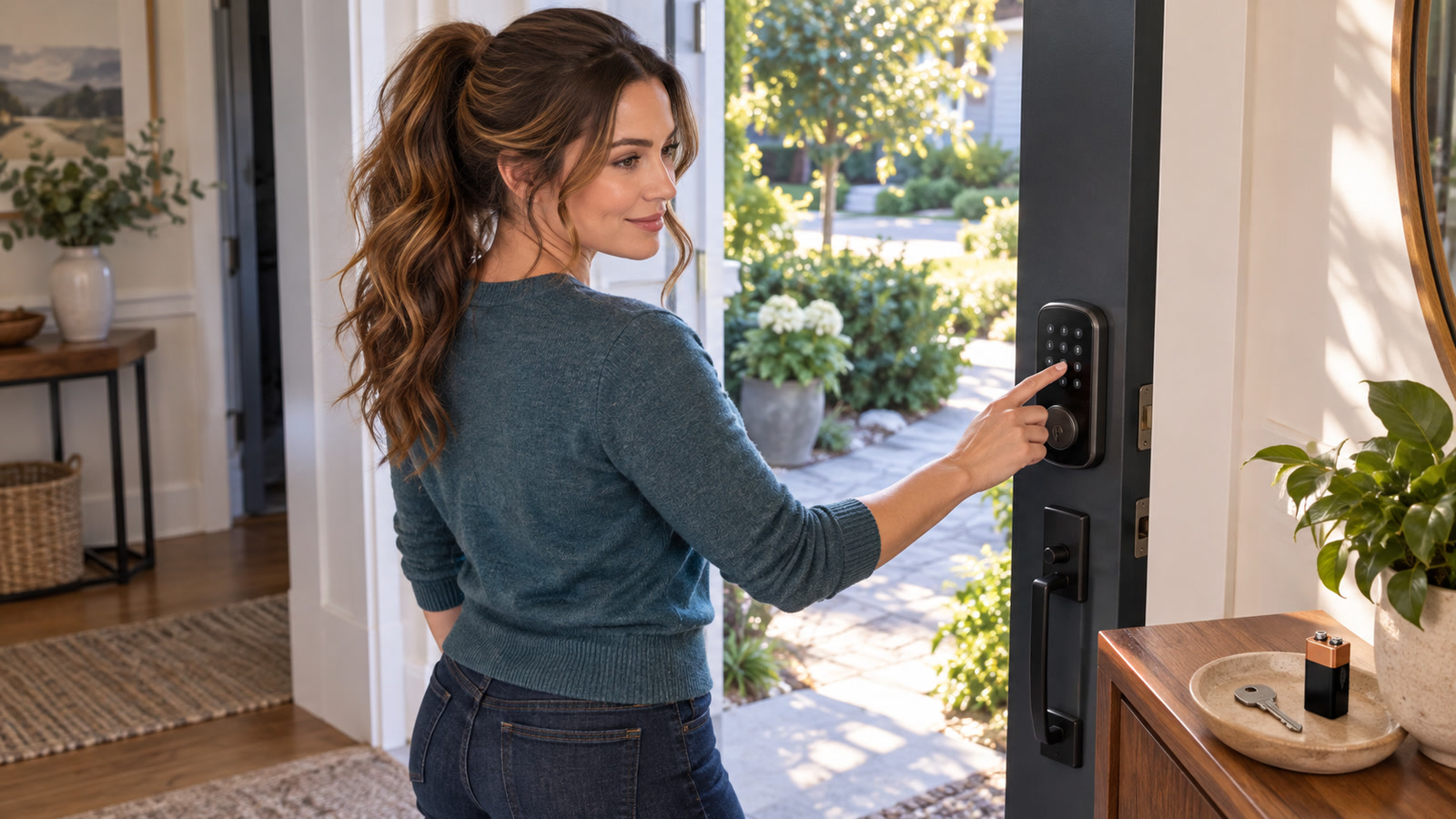
Possible failure chain: a smart lock is convenient right up to the moment your phone, Wi-Fi, cloud account, batteries, keypad, or backup key does not cooperate. The expensive surprise is not always a broken lock. It is discovering—outside the door—that nobody ever tested the lock’s documented fallback.
Guidance checked: September 13, 2026 at 1:16 p.m. EDT / 17:16 UTC.
The problem in one minute
“Smart lock” describes many different products, not one standard failure behavior. One model may keep accepting keypad codes when Wi-Fi is unavailable. Another may have a physical key cylinder. A keyless model may expose temporary battery contacts. Battery type, warning pattern, account design, and emergency procedure can differ even within one brand.
Google’s Nest × Yale guidance says an offline lock can still use its keypad, and a fully drained unit can be powered temporarily with a 9-volt battery while a passcode is entered.[1] That is useful evidence for that model—not permission to assume every smart lock works the same way.
Practical goal: identify your exact model, prove every intended entry route while the door is open, preserve a safe non-cloud fallback, and replace weak batteries before the warning becomes a lockout.
Who is affected—and who is not
Likely affected
- Homes, offices, rentals, storage rooms, and workshops that depend on an electronic or app-connected lock.
- Properties where only one person controls the owner account, recovery email, phone, or physical key.
- Doors where the bolt drags, batteries drain unusually fast, alerts are ignored, or nobody knows the exact model.
- Businesses using time-limited codes for staff, contractors, cleaners, or guests.
Probably a different problem
- A purely mechanical lock with no battery, keypad, radio, or app.
- A building-wide commercial access-control system managed by a landlord or security integrator.
- An electric strike, magnetic lock, panic hardware, fire door, or life-safety egress system.
- A visibly damaged, forced, or tampered lock that needs a locksmith or law-enforcement response rather than an app reset.
Build an access map before touching settings
Write the manufacturer, exact model number, door location, owner account, installed battery type, and every route you believe should open the door. Use the model’s current manual or official support page—not a video for a lock that merely looks similar.
| Possible entry route | What it depends on | What to prove |
|---|---|---|
| Physical key | Correct cylinder and an available key | The key turns smoothly from outside; a spare is stored outside the locked perimeter |
| Local keypad or fingerprint | Lock power, enrolled credential, local electronics | Works with the phone in airplane mode and the door held open |
| Phone near the door | Phone power, app/account, Bluetooth or another local radio | Works only as the manufacturer documents; owner can sign in again |
| Remote app control | Internet, cloud service, router/bridge, account permissions | Useful convenience, but not treated as the only rescue path |
| Exterior emergency power | Correct battery or power source and exposed contacts/port | Exact model supports it; required item is available outside |
| Alternate authorized entrance | Another key, person, or controlled access route | Actually accessible—not behind the same locked door |
Step-by-step: test the lockout plan safely
1. Identify the exact lock and download its instructions
- Keep the door open. Extend and retract the bolt with the inside thumbturn.
- Photograph the model label, battery compartment, and exterior face without exposing a programming code, serial number, recovery code, or active PIN.
- Find the official manual or support page for that exact model and region.
- Record the specified battery chemistry, count, warning indicators, and documented emergency entry method.
For example, Schlage’s Encode guidance says the lock is battery operated and continues working during a building power outage; it specifies four new AA alkaline batteries and distinguishes flashing-low from solid-replace-immediately battery indicators.[2] Those details should not be copied to a different model without checking.
2. Prove the ordinary keypad or local credential
With the door open, lock and unlock it from outside using the code, fingerprint, card, or local method you expect to use when the phone is unavailable. Then put the phone in airplane mode and repeat. If the credential fails, stop and consult the exact manual while you still have interior access.
Do not post the result in a shared note or tape the code beside the door. Record only that the route passed, who owns it, and when it should be retested.
3. Test loss of Internet—not loss of safety
Do not unplug a business network or alarm system just to test a lock. For a home lock, first disable Wi-Fi and mobile data on the phone while leaving Bluetooth in the state the manual expects. Test the local credential with the door open. If a dedicated hub or bridge is involved, schedule a controlled test that will not interrupt cameras, alarms, medical devices, or other occupants.
The result you want is a factual matrix: local entry works, remote control unavailable, and owner recovery documented. Google’s model-specific guidance explicitly notes that a Nest × Yale lock may be offline to the app while the keypad remains usable.[1]
4. Verify the physical or emergency-power fallback
Good test
- Door remains open.
- Exact manual is in hand.
- Key or approved power source is outside the room.
- One person tests while another preserves interior access.
- Result and retest date are recorded without storing the PIN.
Bad test
- Close the door to “make it real.”
- Remove batteries to imitate failure.
- Guess which contacts accept power.
- Use a random USB charger or battery chemistry.
- Factory-reset the lock when one entry method fails.
For the Nest × Yale model, Google instructs users to hold a 9-volt battery to the exterior contacts and enter the passcode; it also notes a delay for some time-limited Home Entry Only credentials while the lock synchronizes its internal clock.[1] Other locks may use a key, a different temporary-power method, or no exterior recovery at all. Follow only the instructions for your exact hardware.
5. Replace batteries deliberately
Respond to the first warning rather than waiting for a critical alert. Google says the Nest × Yale app provides a low-battery notification and a second critically-low notice; its support page specifies four standard AA alkaline batteries and says not to use rechargeable NiMH or other battery types for that model.[3]
- Use the manufacturer-specified chemistry and size.
- Battery-handling precaution: replace the complete set together; do not mix old and new cells.
- Check polarity and clean, dry contacts. As a practical battery-safety precaution, stop if you see leakage or corrosion.
- After replacement, test lock, unlock, keypad, app status, and any automation with the door open.
- Write the replacement date somewhere safe—not on the exterior lock.
6. Check the door before blaming the electronics
Operate the bolt several times with the door open. Safety precaution: only after an alternate authorized entry route is verified, keep a second person on the interior side and briefly compare operation with the door closed; the interior person must preserve immediate thumbturn access. If the motor sounds strained or the bolt rubs only when closed, inspect alignment, weatherstripping pressure, hinge movement, and the strike opening. Kwikset says even slight bolt-to-strike misalignment can increase friction and battery use, and it recommends checking alignment first when supported Halo/Aura models drain batteries faster than expected.[4]
7. Remove the single-account failure
Confirm which person and email address own the lock, whether the recovery address and phone are current, and whether a second authorized adult or business owner has an independent supported route. As a security-maintenance step, remove former employees, contractors, guests, and stale shared accounts according to the product’s documented process.
CISA recommends evaluating device security settings, applying relevant software patches, considering whether continuous Internet connectivity is necessary, and replacing default passwords with strong ones for Internet-connected devices.[5] The CISA page is archived and says it may not reflect current policy or programs, so use it here as general device-hygiene guidance—not as current model-specific lock instructions.
If your lock, bridge, or app supports updates, confirm the installed version and vendor-supported update path. Security precaution: do not install firmware from a forum, disable authentication for convenience, or share one owner login across a team.
8. Store the rescue items where they can rescue you
- Practical continuity recommendation: keep the mechanical spare key or approved emergency battery outside the locked perimeter in a secure, access-controlled location.
- Put the official manual URL, model number, support number, account owner, and last test date on an emergency sheet—never the PIN itself.
- For a business or rental, define who may issue, revoke, and audit codes.
- Set a calendar reminder to test every path and inspect batteries; also retest after phone replacement, router changes, account recovery, app migration, door work, or firmware updates.
Our related one-page tech emergency sheet gives you a place to record ownership and recovery details. Our guest Wi-Fi and smart-device network guide covers the separate job of limiting how connected devices share your main network.
Two realistic examples
Harmless-looking failure
A homeowner’s app shows the lock offline after a router replacement, but the door is open and the local keypad still works. The safe response is to preserve working entry, verify the exact bridge/Wi-Fi setup instructions, and reconnect the app path later.
Costly wrong turn
A shop has one app owner, no tested key, and a closing employee who ignores repeated low-battery warnings. The battery fails after hours. The emergency battery is stored inside the locked office. The business now depends on an after-hours locksmith even though the hardware may have had a documented fallback. The fix is not merely new batteries; it is moving one verified rescue route outside the failure boundary and assigning ownership.
What this plan does not guarantee
- No universal fallback: keyways, keypads, radios, emergency contacts, and battery requirements are model-specific.
- No cloud guarantee: local entry may continue while remote status, notifications, history, or guest management is unavailable.
- No security certification: a successful continuity test does not establish resistance to picking, tampering, account compromise, or a product vulnerability.
- No life-safety approval: commercial egress, fire doors, disability access, rentals, and regulated facilities can have rules beyond the lock manual.
- No permission to bypass access controls: use these steps only on a lock and property you are authorized to manage.
Frequently asked questions
Will a smart lock work during a power outage?
Many residential smart locks are battery powered, so loss of building power does not necessarily stop local locking. Schlage says its smart locks are battery operated and continue during a power outage.[2] Your Wi-Fi router, bridge, remote app functions, or alarm integration may still lose power, so verify the exact local path rather than assuming the entire system remains online.
Can I use rechargeable batteries?
Only if the manufacturer explicitly approves them for your exact model. Google tells Nest × Yale owners to use standard AA alkaline batteries and not rechargeable NiMH cells.[3] A different lock may specify something else.
Should I keep a 9-volt battery outside?
Only when your exact lock documents a 9-volt exterior-power procedure. Nest × Yale does.[1] Do not touch random batteries or chargers to unknown contacts.
Why are batteries dying so quickly?
Start with mechanical resistance, correct battery type, mounting, radio conditions, and the vendor’s diagnostics. Kwikset identifies door alignment as a major contributor for the supported Halo/Aura family because friction makes the motor work harder.[4] Persistent rapid drain, heat, leakage, or corrosion deserves manufacturer or professional inspection.
Should I factory-reset a lock that is offline?
Not as the first move. Preserve every working local credential, owner account, code assignment, and alternate entry path. Confirm whether the failure is only Internet/app connectivity, then follow the exact model’s documented recovery sequence instead of guessing.
How often should we test?
Use a schedule that matches the property’s risk and traffic. At minimum, retest after battery replacement, phone or account changes, router/bridge changes, firmware updates, door/frame work, staff turnover, or any unexplained failed entry. A business should assign a named owner and record the result.
Action to take today
Open the door, identify the exact lock, and test one non-cloud entry method before you do anything else. Then move the approved spare key or emergency-power item outside the locked perimeter and record the model, owner, manual link, and test date on your emergency sheet. If the fallback cannot be proven safely—or you need help documenting the network, account, and connected-device side—contact The IT Guys. Practical referral: for binding, damaged, or rekeying-related hardware, use the lock manufacturer or a qualified locksmith.
Sources and how we know
The model-specific recovery facts come from official Google Nest, Schlage, and Kwikset guidance.[1][2][3][4] General connected-device hygiene is attributed separately to CISA and labeled as archived guidance.[5]
- Google Home and Nest Help: How to lock and unlock the Nest × Yale Lock if the battery is drained.
- Schlage: Encode Smart WiFi Deadbolt vacation-rental tip sheet.
- Google Home and Nest Help: How to check and change your Nest × Yale Lock’s batteries.
- Kwikset: Halo Select support and battery guidance.
- CISA: Securing the Internet of Things (archived guidance).
Scope limit: product behavior and support instructions can change. Verify the exact model and current manual before relying on any fallback. This is an access-continuity checklist, not locksmith, fire-code, legal, landlord, or security-certification advice.