

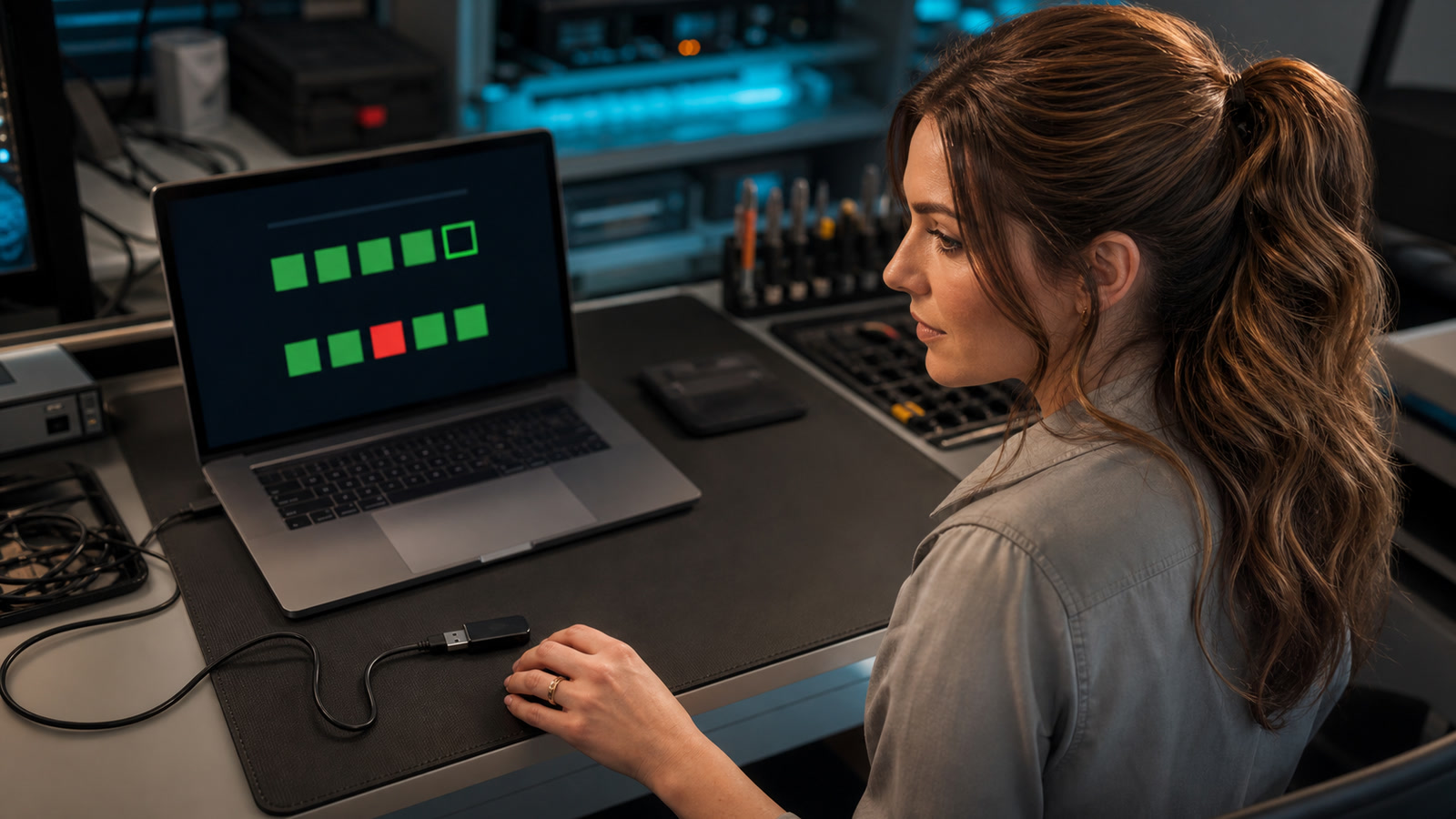
A brand-new USB drive, SD card, or bargain external SSD can look enormous in File Explorer and still be unable to retain data across the capacity it reports. The safe move is to verify a new removable drive before it becomes the only home for family photos, tax records, camera footage, client work, or a backup.[1][2][5]
Guidance checked: September 1, 2026, 1:06 p.m. EDT / 17:06 UTC
This guide explains a low-risk testing ladder for Windows, macOS, and Linux; the difference between a quick screen and a full write-and-read verification; when testing will erase data; and what to do if the result is bad. It is intentionally separate from our earlier guide to encrypting removable drives: encryption protects confidentiality, while capacity verification checks whether the medium can actually retain the amount of data it claims.
The costly problem: the label and reported size are not proof
Gibson Research Corporation says fraudulent removable drives can be configured to report more storage than they physically contain; once writes move into nonexistent storage, earlier data may be overwritten or later files may appear to save but fail when read back.[1] F3—the open-source “Fight Flash Fraud” project—uses the same core test principle: write pseudorandom data across the available space, then read it back and confirm the bytes are the same.[2]
What this means in practice: seeing “1 TB” or “2 TB” in Windows Disk Management, Finder, Disk Utility, a camera, or a phone is not a capacity test. Those tools normally display what the device controller reports. A real verification must write known data and read it back from across the claimed space.[1][2][5]
The problem is not limited to one connector or shape. USB thumb drives, microSD and full-size SD cards, portable flash-based drives, and low-cost external SSD-like products can all warrant verification when the source, price, branding, packaging, or behavior is questionable. A failed test can also indicate a defective genuine device rather than fraud, so report the observed result without accusing a seller or manufacturer unless identity and intent are independently established.
Who should test—and who should stop first
Test before trust if:
- The device is new, especially if the price was dramatically below established products of similar capacity.
- The packaging, model number, warranty path, or seller identity is unclear.
- Files copied successfully but later became unreadable, changed size, disappeared, or opened as corrupt.
- A camera or recorder stops saving only after the card fills past a repeatable point.
- The drive will hold the only portable copy of business work, photos, video, recovery media, or backups.
Do not begin a write test yet if:
- The device contains the only copy of anything important. Full-capacity tools write large amounts of test data, and some fast probe modes are explicitly destructive.[2]
- The device is clicking, disconnecting, overheating, physically damaged, or causing electrical warnings. Capacity testing is write-heavy and is not a safe first step for failing hardware.
- The USB device was found, arrived unexpectedly, or came from an untrusted person. CISA warns not to plug an unknown USB drive into a computer because removable media can carry malware.[3]
- The storage belongs to an employer, customer, camera system, medical device, or regulated workflow. Follow the owner’s handling and evidence-preservation rules instead of running an unsanctioned test.
Before testing: preserve data and identify the exact target
- Copy every readable file to a known-good destination. Open a sampling of the copied files from that destination. If the removable drive is the only copy and files are already corrupt, stop writing and consider professional recovery.
- Photograph the device and receipt. Record the seller, order number, packaging, claimed capacity, model, serial number if present, purchase date, and return deadline. Do not include private identifiers in a public review.
- Disconnect unrelated removable drives. This reduces the chance of selecting the wrong disk. Keep the computer’s normal internal system drive connected.
- Confirm the target by capacity and physical unplug/replug behavior. If there is any doubt which device a tool selected, cancel. Never guess a drive letter or a Linux/macOS device path.
- Use a trusted computer and obtain tools only from their real project or publisher page. Do not download a lookalike capacity tester from an advertisement, software mirror, or newly created “official” domain.
The verification ladder: quick screen, then full proof
Step 1: Run a quick, data-preserving screen on Windows
GRC’s ValiDrive performs a data-preserving spot check across hundreds of widely separated regions of a USB-addressed drive.[1] That makes it useful for quickly exposing many grossly inflated-capacity devices without filling the entire disk.
- Download ValiDrive from Gibson Research Corporation’s ValiDrive page, not a similarly named third-party site.[1]
- Close programs using the removable drive and launch the tool.
- Use the tool’s insert/select flow and verify the chosen physical device by its reported size and connection event.
- Run the validation and save a screenshot of the map and summary.
Good: a clean spot-check is useful evidence that sampled regions behaved correctly. Limitation: it is still sampling, not a byte-for-byte guarantee of every address, long-term health, endurance, or advertised speed.[1] For a device that will carry important data, continue to a full write-and-read test while it is empty.
Step 2A: Fully verify free space on Windows with H2testw
Heise publishes H2testw as a Windows utility that fills the selected target with test files and then verifies them.[5] A full run can take hours because it must write and read nearly the entire available capacity; the duration depends on the real size and speed of the device and connection.
- Back up the target and, for the clearest result, start with an empty newly formatted volume.
- Download H2testw from Heise’s H2testw page.[5]
- Choose English if needed, select the exact target folder on the removable drive, and choose all available space.
- Start Write + Verify. Prevent the computer from sleeping and do not unplug the drive during the run.
- Save the complete final report. A trustworthy full run should report that all tested data was written and verified without corruption; any lost, overwritten, aliased, or corrupted region is a failure for important storage.
Caution: H2testw’s file-based mode fills free space with test files. That is still heavy writing and is not a substitute for backing up existing files. Delete the test files only after saving the result.
Step 2B: Fully verify on macOS or Linux with F3
F3’s documented file-based workflow runs f3write on the mounted volume and then f3read on that same volume; F3 says it fills the device with pseudorandom data and verifies that the same data comes back.[2]
- Install F3 through a trusted operating-system package source or build a tagged release from the F3 project repository.[2]
- Mount the empty removable volume and confirm its path. On macOS removable volumes are commonly under
/Volumes; Linux mount paths vary. - Run
f3writeagainst the mounted volume, let it finish, then runf3readagainst the same path.[2] - Save the complete output and require zero corrupted, changed, overwritten, or lost data before trusting the device.
Danger boundary: F3 also documents a faster f3probe --destructive method that operates on an unmounted block device and destroys existing data.[2] Do not copy a generic /dev/sdX command from the internet. A mistaken device path can erase the wrong disk. The file-based f3write/f3read workflow is slower but avoids that raw-device selection hazard.
SD and microSD cards: test capacity, then format for the device
A capacity test and a standards-compliant format solve different problems. After a card passes verification, the SD Association recommends its SD Memory Card Formatter for SD, SDHC, SDXC, and SDUC cards rather than generic operating-system format tools.[4] Formatting cannot turn fake or defective flash into reliable storage, and it does not prove the card’s speed class or endurance.
For a camera, dashcam, drone, handheld console, or recorder, finish by formatting the verified card in the device if the manufacturer instructs you to do so, then record and play back a real sample. Device compatibility can fail even when raw capacity is genuine.
How to read the result
A passing result means
- The tested addresses accepted known data and returned it correctly during that test.[1][2][5]
- The device has stronger evidence of usable capacity than a label, product page, or operating-system size display.
- You may proceed to formatting, a device-specific test, and normal use—while still keeping independent backups.
A passing result does not mean
- The device will never fail, has the claimed speed or endurance, or is an authorized product from the brand printed on it.
- A quick spot-check examined every storage address.[1]
- The drive is safe to use on sensitive computers merely because its capacity passed. CISA’s malware and data-exposure cautions still apply.[3]
- The drive is a backup if it contains the only copy. A verified device can still be lost, damaged, stolen, or corrupted.
A failed result means
Do not use the device for important data. Preserve the report, screenshots, receipt, packaging, seller listing, and model/serial details. If readable files remain, copy them to known-good storage without writing more to the suspect device. Request a return or refund through the seller’s official process and describe the observable failure: advertised capacity, tool and version, tested amount, and corrupted or lost amount. Avoid claiming “counterfeit” as a proven fact when the evidence only establishes a capacity or integrity failure.
Good and bad choices
Good
- Buy from a traceable seller with a realistic price and clear return/warranty path.
- Test new removable media while it is empty and still within the return window.
- Use a quick screen for triage and a full write-and-read test before important deployment.
- Save test reports and label the verified device with the test date.
- Encrypt private files after capacity verification and keep another independent copy.[3]
Bad
- Trusting the capacity shown by the operating system as proof.
- Running a destructive raw-device command without independently confirming the target.
- Testing the only copy of irreplaceable files.
- Downloading a tester from a sponsored result or imitation site.
- Using a failed device at its “real” smaller capacity. A partition workaround does not establish identity, health, endurance, or trustworthiness.
Two realistic examples
The harmless early catch
A home user buys a high-capacity microSD card for a camera. Before the first event, they copy nothing important to it, run a quick screen, then a full H2testw write-and-verify test. The verification fails beyond a small fraction of the advertised capacity. Because the card is empty and the receipt is current, the problem becomes a return—not lost photos.
The costly wrong turn
A small business copies its only project archive to a bargain “2 TB” USB drive and deletes the workstation copy after File Explorer reports the transfer complete. The directory still lists the filenames, but older archives have been overwritten as the drive wrapped writes into a smaller physical capacity. The business now needs recovery work and may still lose data. A full test before deployment—and a separate verified backup—would have stopped the chain earlier.
FAQ
Can I verify capacity by copying one giant file?
That is better than trusting the label, but it is incomplete unless known data spans the claimed space and every byte is read back and compared. Purpose-built tools automate the write, read, and integrity comparison.[1][2][5]
Will a quick format reveal fake capacity?
No. Formatting creates file-system structures inside the size the controller reports. It does not prove that physical storage exists behind every reported address.
Does a failed test always prove fraud?
No. It proves the tested device failed capacity or integrity verification under the recorded conditions. Defective flash, a bad reader, unstable power, a cable problem, or connection errors can also cause failures. Retest once with a known-good port or reader only if the device is empty and stable; do not keep retrying a drive that is disconnecting, overheating, or holding the only readable copy.
Can I repair a fake-capacity drive by making a smaller partition?
Some tools can create a partition limited to an observed usable area, but that does not make an unidentified or deceptive product trustworthy. For customer data, backups, recovery media, or camera footage, replace it.
Should I test an external hard drive the same way?
Capacity fraud can affect USB-addressed products, but full-device flash tests perform heavy writes. For a conventional hard disk that clicks, disappears, reports SMART warnings, or already contains important data, stop and diagnose health or recover data before running a write-heavy capacity test.
Do I still need encryption and backups after a pass?
Yes. Capacity verification, encryption, and backup answer different questions: can the medium retain the claimed amount, can an unauthorized person read it, and can you recover if the medium is lost or fails? Use our USB encryption checklist and one-file restore test after the capacity gate.
Your next action
Pick the newest USB drive or SD card you plan to trust with important files. While it is empty, verify the seller and model, run a quick screen, then schedule a full write-and-read test. Save the result next to the receipt. If it fails, preserve evidence and return it; if it passes, format it correctly, test it in the intended device, encrypt private data, and keep another copy.
Need help identifying a suspect drive without risking the only copy of your files? Book an appointment with The IT Guys and tell us whether the device is empty, whether files are already corrupt, and which computer or camera uses it.
Sources
- Gibson Research Corporation: ValiDrive
- F3 — Fight Flash Fraud project repository and documentation
- CISA: Using Caution with USB Drives (the live page blocked the automated fetch during this run; wording was checked against CISA’s indexed page summary)
- SD Association: SD Memory Card Formatter
- Heise: H2testw