

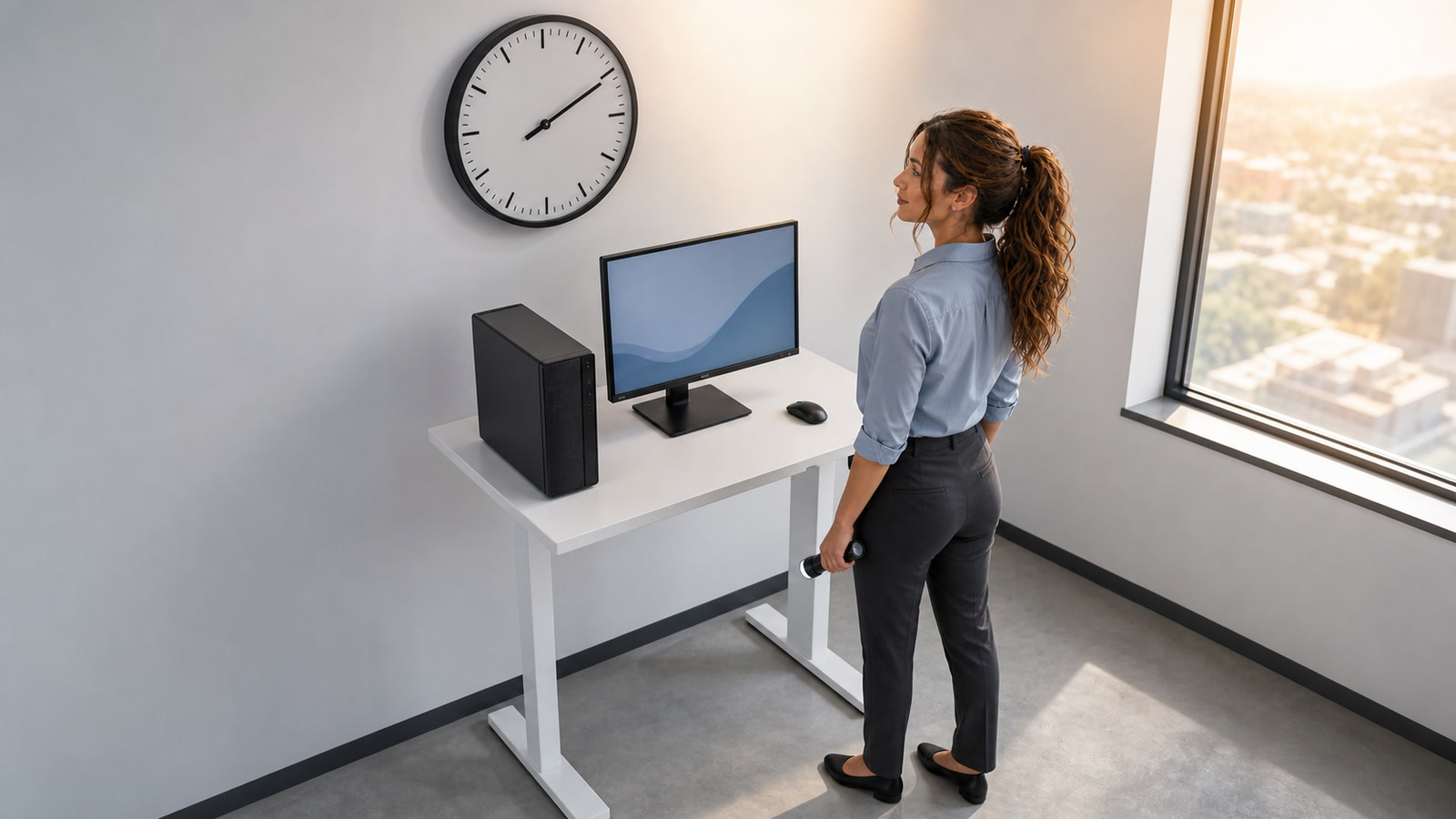
A computer that shows the wrong date or time can make healthy websites, business logins, shared folders, and one-time codes look broken.
Guidance checked: August 29, 2026, 1:24 p.m. EDT / 17:24 UTC
Before clearing browser data, resetting passwords, or replacing the computer, verify the clock, time zone, synchronization source, and what happens after a full shutdown. The same visible symptom can come from one incorrect setting, a blocked time source, a business-domain problem, a virtual machine, or a hardware clock that no longer holds time.
The costly problem: bad time impersonates several other failures
Google’s current Chrome help says that when a device shows “Your clock is behind”, “Your clock is ahead”, or NET::ERR_CERT_DATE_INVALID, the first fix is to open the device clock and make sure its date and time are correct.[5] Google identifies inaccurate device time as a cause of those date-related errors.[5]
In a Windows business domain, Microsoft says the Windows Time service is essential to Kerberos authentication and that participating computers need synchronized clocks.[2] Time-based one-time passwords also use a time value as their moving factor, according to RFC 6238.[7] Important boundary: a wrong PC clock does not alter a code generated on a separate phone whose own clock is correct; test the clock on the device that actually generates or validates the code.
Practical guidance: treat the clock as shared infrastructure, not decoration. One bad clock can produce misleading certificate, authentication, or file-timestamp symptoms.[2][4][5] A time-based code can also fail when the generator or validator is sufficiently out of sync to fall outside the service’s accepted window.[7] None of those symptoms alone proves that the website, password, network, or computer has failed.
Who is affected—and who probably is not
Likely affected
- Several secure websites suddenly show date-related certificate or clock errors on one computer, while the same sites work on another correctly timed device.[5]
- The displayed year, date, hour, or time zone is plainly wrong after startup, travel, a power loss, or a long shutdown.
- A domain-joined Windows PC cannot sign in to business resources or reach file shares while neighboring computers work; Microsoft identifies synchronized time as necessary for Kerberos-based authentication.[2]
- Email, message, or file timestamps appear in the wrong order; Apple specifically advises keeping Mac time correct so those timestamps are correct.[4]
- A time-based one-time code can fail when the generator or validator is sufficiently out of sync to fall outside the service’s accepted window.[7]
- The clock becomes correct after synchronization but returns to an old date after the computer is shut down and unplugged.
Probably not this issue
- Only one website reports an expired or misconfigured certificate while the device date, time, and zone are correct. Do not bypass the warning merely because the clock looks normal; the site itself may need repair.[5]
- The computer clock is correct but one Microsoft 365 account shows unfamiliar access or applications. Follow our Microsoft 365 OAuth-consent checklist instead of treating a security incident as a clock problem.
- The device holds time but calendar appointments are consistently shifted. Check the calendar account and event time zone as a separate layer.
- A printer scans but cannot send email while other services work. Use our secure scan-to-email troubleshooting guide.
Before changing anything: preserve the clues
- Photograph the visible date, time, and time zone. Include any exact browser, sign-in, or startup error.
- Record when the clock becomes wrong. Note whether it happens while running, after sleep, after restart, after a full shutdown, after unplugging, after a depleted laptop battery, or after resuming a virtual machine.
- Check another trusted device. Compare against a phone with carrier time or the official U.S. time display at time.gov. NIST says time.gov displays the device clock and its estimated error compared with official time.[8]
- Preserve business context. Record whether the PC is domain-joined, managed by an employer, or running as a virtual machine. Do not replace its time source or change Group Policy by guesswork.
- Change one layer at a time. A manual correction that hides the symptom for ten minutes is not proof that synchronization or hardware is healthy.
Step 1: separate the clock, time zone, and synchronization source
These are related but different:
- Date and time: the current calendar date and clock reading.
- Time zone: the local offset and daylight-saving rules used to display local time.
- Synchronization source: the service or business hierarchy that periodically corrects the clock.
Microsoft’s Windows instructions expose automatic date/time, automatic or manual time-zone selection, and daylight-saving behavior as separate settings.[1] NIST says its time services broadcast Coordinated Universal Time and that the operating system supplies local time-zone and daylight-saving corrections; it also notes that NTP itself contains no daylight-saving information.[9]
Step 2: repair a personal Windows 11 or Windows 10 clock
- Open Start → Settings → Time & language → Date & time.
- Turn on Set time automatically.
- Confirm the Time zone. If automatic zone detection chooses the wrong location, temporarily select the correct zone manually and document that change.
- Under the additional synchronization settings, choose Sync now when that control is available.
- Compare the result with the trusted reference you recorded.
- Restart once, then shut down fully, disconnect power for several minutes when practical, and start again. Record whether the time remains correct before internet access is restored.
Microsoft documents the automatic time, manual time, automatic time-zone, manual time-zone, and daylight-saving controls in the Windows Settings app.[1] Practical guidance: use a manual date only as a short diagnostic bridge when automatic synchronization cannot run; a permanently manual clock can drift and does not repair the source problem.
Step 3: repair a Mac clock
- Open Apple menu → System Settings → General → Date & Time.
- Turn on Set time and date automatically.
- Use the network time server appropriate for your organization or region.
- Turn on Set time zone automatically using your current location if that privacy and location choice fits the device.
- Restart, compare with the trusted reference, and repeat the shutdown test.
Apple’s current Mac guide gives that settings path and says automatic time uses a network time server; it also recommends correct time so email, message, and file timestamps are correct.[4] On a managed Mac, a dimmed or locked setting may be controlled by the organization—do not remove management to change the clock.
Step 4: stop at the business-domain boundary
A domain-joined Windows PC normally follows the organization’s time hierarchy, not an arbitrary internet server. Microsoft says most domain members synchronize from the Active Directory domain hierarchy and that the Windows Time service supports Kerberos-based authentication.[2][3]
An administrator can use read-only checks such as w32tm /query /status, w32tm /query /source, and w32tm /query /configuration to inspect synchronization state and source; Microsoft identifies w32tm as the preferred command-line tool for configuring, monitoring, and troubleshooting Windows Time.[3]
Stop condition: if the computer is domain-joined, managed, a server, a domain controller, or part of a virtual environment, do not paste a random public NTP server into it, edit the registry, unregister the service, or change Group Policy from a generic guide. Capture the read-only output and escalate to the administrator who owns the time hierarchy.
Step 5: decide whether the clock loses time only when power is removed
After synchronization succeeds, test these states separately:
- Leave the computer running for 30 minutes and compare again.
- Restart without removing power.
- Shut down fully for several minutes while power remains connected.
- For a desktop, disconnect wall power only when it is safe; for a laptop, do not intentionally deep-discharge a healthy battery.
- Check the date and time in firmware setup before the operating system corrects it, using the manufacturer’s model-specific instructions.
If the firmware clock returns to an old date only after power is removed, that pattern points toward the real-time-clock power path rather than a browser cache. Dell says a desktop CMOS or coin-cell battery helps retain BIOS or UEFI settings and date/time while the computer is off; common failure symptoms include incorrect system time, lost BIOS settings, and a time-of-day clock-stopped message.[6] That evidence is vendor-specific, so check the exact computer’s service manual before assuming it has a replaceable coin cell.
Step 6: replace hardware only with model-specific instructions
- Desktop with a documented replaceable coin cell: follow the manufacturer’s service manual, disconnect power, use electrostatic-discharge precautions, match the exact battery type, and record important firmware settings first.[6]
- Laptop or compact computer: do not pry it open based on a generic desktop video. The clock may use a cabled battery, the main battery, or a design-specific procedure.
- Managed or encrypted business PC: schedule the work with whoever owns its firmware configuration and recovery records.
- Clock remains wrong while the machine is running: investigate synchronization, virtualization, operating-system service state, malware, or board failure before replacing a battery.
Caution: removing a coin cell can reset firmware settings. Dell instructs owners to use the computer documentation, match the battery type, disconnect power, and follow electrical-safety precautions.[6] If the model manual is unavailable or the battery is soldered, stop.
Step 7: if synchronization fails, test the path—not random servers
- Confirm the device has working internet or the required business-network connection.
- Check whether the device can reach its intended time source.
- On Windows, capture
w32tm /query /status,w32tm /query /source, andw32tm /query /configurationbefore changing anything.[3] - For a business firewall, ask the administrator to verify the intended NTP design and policy. Microsoft notes that W32Time synchronization uses UDP port 123.[3]
- For a virtual machine, verify whether the guest should follow the host, a domain hierarchy, or another approved source; conflicting sources can keep correcting each other.
- Do not disable certificate checks, weaken browser security, or bypass a secure-site warning to “prove” the clock is the only problem.
Good and bad troubleshooting choices
Phone readers: swipe the table left to see every column.
| Choice | Good point | Bad point or caution |
|---|---|---|
| Compare with a trusted time reference | Separates an actually wrong clock from a misleading app symptom. | A web clock is a check, not a replacement for the operating system’s synchronization service.[8] |
| Use Windows or macOS automatic time | Restores the supported consumer path.[1][4] | Can fail again if the network, source, management policy, or hardware clock is still wrong. |
| Inspect the approved Windows source | Read-only w32tm queries preserve evidence for IT.[3] |
Changing peers or registry values can break a managed hierarchy. |
| Replace a documented desktop coin cell | Can repair time retention when the exact model and symptom fit.[6] | May reset firmware settings; laptop procedures vary. |
| Click through a certificate warning | None for ordinary banking, email, payroll, or business use. | Hides the safety signal without proving whether the clock or website is wrong.[5] |
| Reset passwords first | Appropriate only when there is separate evidence of account compromise. | Does not repair bad time and can add lockout confusion. |
Two realistic examples
Harmless setting problem
A home PC returns from travel with the correct minutes but the wrong time zone. Several calendar entries appear shifted, but secure sites work. Correcting the zone and enabling automatic zone handling fixes the display. No passwords, browser certificates, or hardware needed replacement.[1]
Costly wrong turn avoided
An office desktop starts at a date years in the past after every weekend power shutdown. Chrome shows a clock-related certificate error, and the employee assumes the company website was hacked. Synchronization fixes the clock until power is removed again. The firmware clock also resets, and the exact model’s service manual documents a replaceable coin cell. The business schedules a controlled battery replacement instead of reinstalling Windows, bypassing certificates, or resetting every account.[5][6]
Verify the fix before you trust it
- Record the correct local date, time, zone, and approved synchronization source.
- Confirm a manual or automatic synchronization reports success.
- Restart and perform one full shutdown test.
- Reopen the previously failing secure websites without bypassing warnings.
- For a domain PC, test the same sign-in, file share, printer, or application that failed before.
- If a time-based code failed, confirm the clock on the code-generating device; if the problem persists across correctly timed devices, have the service administrator verify the validating system’s time.[7]
- Check email, file, backup, camera, and job timestamps for a complete work cycle.
- Recheck the clock the next morning and after the next planned power interruption.
Frequently asked questions
Why does the internet fail when the clock is wrong?
Google documents clock-ahead, clock-behind, and date-invalid Chrome errors and tells users to correct the device clock first.[5] If the clock is already correct, treat the warning as a possible website or network-security problem rather than bypassing it.
Can a wrong clock break a Windows business login?
Yes, when Kerberos-based domain authentication is involved. Microsoft says Windows Time is essential to Kerberos and that participating computers need synchronized clocks.[2] A local Microsoft account or unrelated cloud login can fail for other reasons, so the clock is a test—not a universal diagnosis.
Will a wrong computer clock break every MFA code?
No. RFC 6238 defines time-based one-time passwords using a shared time-step calculation and discusses validation windows and tolerable drift.[7] A participating clock may cause rejection when it is sufficiently out of sync; a separately timed phone may remain correct even when the PC is wrong.
Should I manually set the clock and leave automatic time off?
Usually not. A manual setting can restore temporary access, but it does not prove the device will stay accurate. Use the supported automatic path unless your organization intentionally provides another approved source.[1][2][4]
Does every wrong clock mean a dead CMOS battery?
No. Network failure, wrong zone, disabled synchronization, management policy, virtual-machine time, firmware behavior, or motherboard faults can produce different patterns. Suspect the hardware retention path only when the clock repeatedly loses date/time after power removal and the model documentation supports that diagnosis.[3][6]
What if “Set time automatically” is locked?
The device may be managed by an employer, school, parental-control profile, or policy. Do not remove management merely to unlock the setting; ask the device administrator to inspect the approved source and policy.
How do I avoid an MFA lockout while troubleshooting?
Prepare a separate recovery method before changing phones, authenticator apps, or account settings. Our backup sign-in plan explains that preparation.
Your next action
Photograph the wrong clock and exact error, compare it with a trusted reference, then use the supported Windows or macOS automatic-time control. If the clock becomes wrong again, record whether the change happens while running, after sleep, after restart, or only after power removal. That one observation separates a settings problem from a managed-time, virtualization, network, or hardware-retention problem.
Need help with a stubborn clock, secure-site error, business login, or desktop hardware issue in Port Saint Lucie, Jensen Beach, Fort Pierce, or Vero Beach? Schedule an appointment with The IT Guys.
Sources
- Microsoft Support — Set time, date, and time zone settings in Windows
- Microsoft Learn — Windows Time Service Technical Reference
- Microsoft Learn — Windows Time Service Tools and Settings
- Apple Support — Set the date and time automatically on your Mac
- Google Chrome Help — Get help with common error messages in Chrome
- Dell Support — How to Replace or Change a CMOS Battery on Your Dell Desktop
- RFC Editor — RFC 6238: TOTP: Time-Based One-Time Password Algorithm
- NIST — About time.gov
- NIST — Daylight Saving Time Rules