

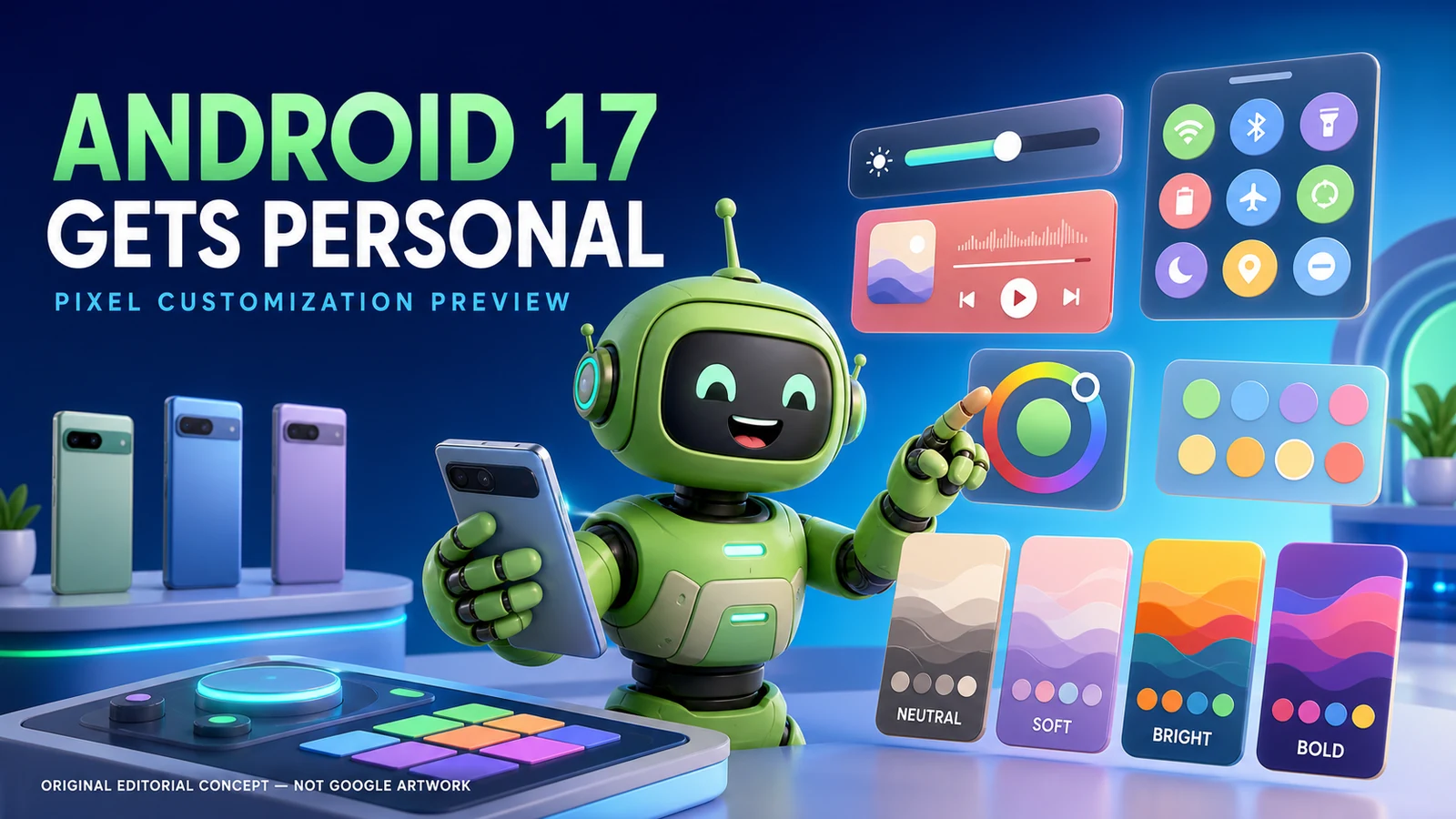
Android 17 is getting a much more playful customization studio on supported Pixel phones—but the headline needs one immediate correction. The “17” is the Android version number, not a promise of exactly 17 brand-new customization features. What testers are seeing in Android 17 QPR2 Beta 3 is a smaller but meaningful collection of Quick Settings and color controls, some new, some expanded, and some already available.
What Android 17 QPR2 Beta 3 actually is
Google released Android 17 QPR2 Beta 3 on August 14, 2026. The official builds are CP41.260731.005.A2 and CP41.260731.005.B1, with the August 5 security patch level and Google Play services 26.26.34. QPR means Quarterly Platform Release: Google uses these updates to deliver fixes and improvements between major Android releases, and supported Pixel devices later receive QPR work through Feature Drops.
Google’s official release notes document the build, call-forwarding fraud protections, and fixed issues, but they do not enumerate the visual customization experiments covered here. Those controls have been observed by outlets using the current Pixel beta. That distinction matters: the beta is real; the exact final UI is not guaranteed.
The customization inventory—new, expanded, existing, and reported
1. Quick Settings Layout tab
A new Layout page appears beside the existing tile editor, giving the expanded Quick Settings shade its own structural controls.
2. Drag-and-drop section ordering
The major sections can be moved rather than accepting Google’s fixed top-to-bottom arrangement.
3. Brightness slider placement
The brightness control can move higher or lower in the expanded panel, useful for people who adjust it frequently.
4. Quick Settings tiles placement
The primary tile/shortcut area can sit above, between, or below the other two major sections.
5. Media player placement
Music and podcast listeners can move the media player closer to the top instead of leaving it at the bottom.
6. Six section layouts
Three movable sections produce six possible top-to-bottom permutations. Current reporting says sections can be reordered but not hidden.
7. Fine-grained hue slider
A color slider lets users move beyond a small set of automatically generated palettes and dial in a preferred system hue.
8. Manual palette control
A palette control provides a direct path into the custom-color experience rather than relying only on wallpaper suggestions.
9. Saved wallpaper color
The selected wallpaper-derived color appears at the front of the choices so the current Material You starting point remains visible.
10. Neutral
A restrained option for users who want quieter surfaces and less dramatic color treatment.
11. Soft
A gentler pastel-like interpretation that keeps color present without dominating every surface.
12. Bright
A livelier treatment intended to make the chosen hue more prominent throughout the interface.
13. Bold
The highest-impact option, using stronger contrast and more assertive color relationships.
14. Tile selection
Pixels already let users choose which Quick Settings tiles appear. QPR2 adds structural control around that existing editor.
15. Tile ordering
Individual tile order is already customizable; the beta’s larger change is rearranging whole sections.
16. Large and small tiles
Current Pixel software already supports different tile sizes. The new layout report says section sizing itself remains fixed.
17. Wallpaper-derived Material color
Material You already builds color suggestions from the wallpaper. The beta makes manual refinement and style selection much richer.
18. Additional blur effects
GSMArena reports more blur effects are planned. This is the least certain item in the current customization cluster and should not be treated as guaranteed.
How the six Quick Settings layouts work
The three movable sections are the brightness slider, Quick Settings tiles, and media player. Three objects can be arranged in six different orders:
The practical benefit is reachability. A user who changes brightness constantly may want that slider near the thumb; someone who manages music all day may prefer the media player first. Current reports say the three sections cannot be hidden or resized from this Layout page.
Which Quick Settings layout might fit you?
Brightness first
This arrangement suits readers who frequently move between indoor and outdoor spaces, share screens, use extra-dim modes, or adjust brightness to manage battery life. Keeping the slider at the top favors visibility over one-handed reach.
Brightness last
Putting brightness at the bottom may make the slider easier to reach on a tall phone. The tradeoff is that an accidental swipe could be more likely when reaching for nearby controls, so actual usability matters more than visual symmetry.
Media first
People who manage music, podcasts, audiobooks, or casting throughout the day may value immediate playback controls. It can reduce scrolling and hunting when the phone is used as a remote.
Tiles first
This is the practical choice for users who repeatedly toggle Wi-Fi, Bluetooth, flashlight, airplane mode, hotspot, or accessibility controls. It keeps the traditional purpose of Quick Settings front and center.
Customization is also an accessibility question
Moving controls is not merely cosmetic. Reachability matters on large phones, and different users prioritize different actions. Someone with limited hand movement may benefit from placing the most important section closest to their thumb. A user with low vision may prefer a stronger Bright or Bold palette, while another person with light sensitivity may find Neutral or Soft more comfortable.
More choices do not automatically produce an accessible interface. Google still needs to preserve readable text, icon recognition, focus behavior, touch-target size, sufficient contrast, color-independent meaning, and predictable navigation across every combination. A dramatic palette can look wonderful in a screenshot while making secondary text harder to read. Likewise, blur can create visual depth but reduce clarity when text or controls sit over a busy background.
When the stable update arrives, test customization under real conditions: bright sunlight, a dark room, extra-dim mode, large text, display scaling, color correction, screen magnification, TalkBack, one-handed use, and both portrait and landscape orientation. If one style weakens readability, choose another rather than assuming the most colorful option is automatically the best.
Four color personalities
Quiet and restrained
Gentle and pastel
Cheerful and lively
Strong and expressive
The style choice modifies how the selected hue is interpreted rather than replacing the color itself. That gives one favorite color several personalities, from subtle to dramatic. The result should feel more intentional than choosing among a handful of nearly identical wallpaper palettes.
Which Pixel devices can test QPR2 Beta 3?
Google’s official QPR2 page lists 19 supported devices:
- Pixel 6a
- Pixel 7
- Pixel 7 Pro
- Pixel 7a
- Pixel Tablet
- Pixel Fold
- Pixel 8
- Pixel 8 Pro
- Pixel 8a
- Pixel 9
- Pixel 9 Pro
- Pixel 9 Pro XL
- Pixel 9 Pro Fold
- Pixel 9a
- Pixel 10
- Pixel 10 Pro
- Pixel 10 Pro XL
- Pixel 10 Pro Fold
- Pixel 10a
The Pixel 6 and Pixel 6 Pro are not on Google’s QPR2 list; the Pixel 6a is. Eligibility for a beta does not guarantee that every observed experiment appears identically on every device or survives into stable software.
When will regular Pixel owners get it?
August 14, 2026
Google released QPR2 Beta 3 to supported Pixel beta devices.
August 15–18
Hands-on reports documented the color styles, hue slider, and Quick Settings Layout page.
Expected around December 2026
Outlets expect QPR2 to reach stable users on the quarterly Feature Drop cadence. Google does not promise that every observed UI experiment will remain unchanged.
Should you install the beta just for customization?
Good reason: you test apps or devices
Developers and experienced testers can validate behavior, report bugs, and prepare for the next Pixel Feature Drop.
Good reason: you have a spare supported Pixel
A secondary device lowers the cost of crashes, battery regressions, broken banking apps, or a required data wipe.
Bad reason: one new color
Cosmetic curiosity is rarely worth putting a primary work or family phone on unfinished software.
Caution: opting out can erase data
Google recommends backing up before enrollment. Leaving the beta outside a permitted stable opt-out window can require a device wipe.
What to check when the stable update arrives
First, confirm the update actually identifies itself as the stable QPR2 or corresponding Pixel Feature Drop—not a beta build or a screenshot from someone else’s phone. Open Wallpaper & style and the expanded Quick Settings editor rather than assuming every reported control is present. Google can change names, remove experiments, or roll components out separately.
Next, take a screenshot of the current layout and note the tiles you rely on before rearranging anything. Try one change at a time: move the most-used section, test it for a day, then adjust color and style. That makes it easier to distinguish a genuine usability improvement from the temporary excitement of a fresh design. Check lock-screen readability, notification contrast, icon recognition, battery-saver appearance, and both light and dark modes.
Finally, remember that customization is local preference, not a competition. A restrained Neutral layout can be just as intentional as Bold. The best setup is the one that lets you find important controls quickly, read them comfortably, and restore the arrangement without confusion after a reset or replacement phone. If a work-managed Pixel restricts Wallpaper & style or Quick Settings changes, follow the organization’s device policy rather than trying to bypass management.
Frequently asked questions
Are there exactly 17 customization upgrades?
No. Android 17 is the operating-system version. The current story combines several new QPR2 Beta 3 controls with existing Pixel customization context.
Is this already on stable Android 17?
No. These specific customization observations come from Android 17 QPR2 Beta 3.
Can I move the brightness slider?
Current beta reports say yes: brightness, Quick Settings tiles, and the media player can be reordered as whole sections.
Can I hide one of the three sections?
Not in the observed Layout editor. Reports say the sections can be reordered but not hidden.
Can I choose any color?
The beta adds a fine-tuning hue slider and manual palette control, though the final stable implementation may change.
What are the four styles?
Neutral, Soft, Bright, and Bold—four interpretations of the selected Material color.
Is Pixel 6 supported?
Google lists Pixel 6a but not Pixel 6 or Pixel 6 Pro for Android 17 QPR2 Beta.
Will all these features arrive in December?
QPR2 stable delivery is expected on the quarterly cadence, but beta features can be changed, delayed, or removed.
Sources and further reading
- Google: Android 17 QPR2 Beta overview
- Google: QPR2 release notes
- Google: supported QPR2 Pixel devices and installation guidance
- Droid Life: Quick Settings Layout editor
- Droid Life: color slider and four style options
- GSMArena: customization and blur-effect report
- Tech Advisor: six layouts and beta caveat
Read Google’s Android 17 QPR2 overview
Reporting cutoff: August 20, 2026. Beta software and observed features can change before stable release. The IT Guys is not affiliated with Google or the cited publications. Android and Pixel are trademarks of Google LLC.