

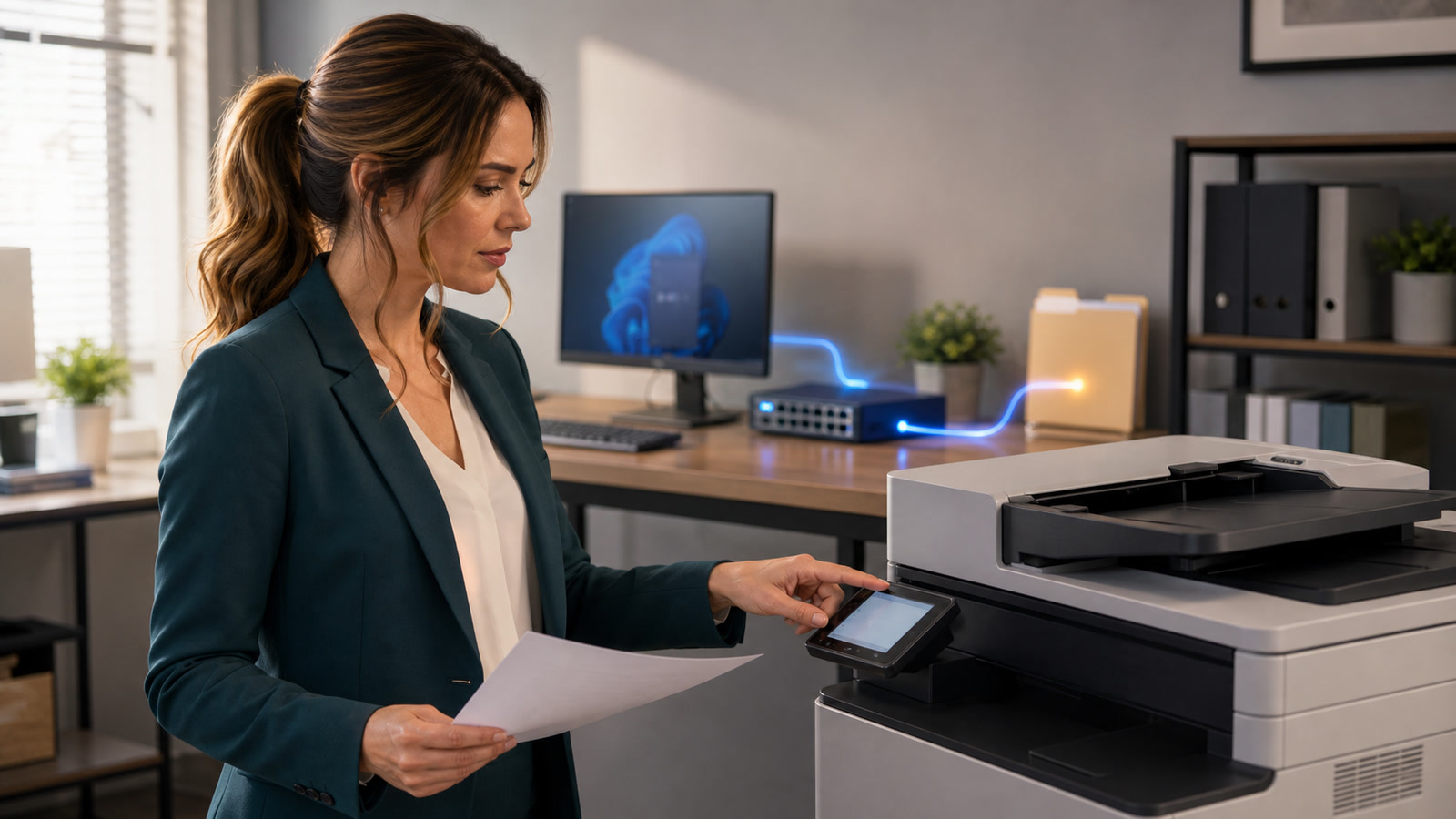
When a copier or multifunction printer stops saving scans to a Windows folder, troubleshoot the job as an SMB file-sharing connection: in this workflow the scanner is the SMB client and the Windows 10 or Windows 11 PC holding the folder is the SMB server.[10][11] Practical guidance: that endpoint direction matters because client capabilities and server requirements are not interchangeable.[1][2][10][11]
Status and diagnostic summary
- Most likely fault areas: Practical guidance: check the saved destination, credentials, share and NTFS permissions, Windows file-sharing firewall rule, and SMB compatibility before changing security controls.[5][7][10][11]
- Correct traffic direction: The scanner initiates the SMB connection to the Windows server, normally using the Windows SMB-In rule and TCP 445.[5][10][11]
- Safer account target: Practical guidance: use a dedicated standard local account with a nonblank password and access limited to one scan folder.[7][8][11]
- Security boundary: Practical guidance: do not enable SMB1 or insecure guest access, disable SMB signing, turn off the firewall, expose TCP 445 to the internet, or grant broad folder access merely to restore an obsolete client.[1][2][3][4][5][7]
- Reporting cutoff: September 2, 2026, 1:16 PM EDT / 17:16 UTC.
Understand what is actually failing
Brother and Xerox setup documentation show the same basic topology: a device connects to a CIFS or SMB server and is configured with a server address, destination folder or share, and credentials that can write to the destination.[10][11]
Printing and scan-to-folder use different paths; a scan profile can fail because its own destination or authentication settings are wrong even when printing remains available.[10][11] Practical guidance: replacing a print driver is usually a poor first test for this scan-to-folder problem.[10][11]
Practical guidance: preserve the current profile and one exact error before editing anything, because a timestamped test and the original field values make it easier to distinguish addressing, authentication, permission, firewall, and protocol failures.[5][7][10][11]
Who this guide does and does not cover
Likely in scope
- This guide covers a copier, MFP, or scanner configured to write into an SMB share hosted by a Windows 10 or Windows 11 PC.[10][11]
- A failure after a saved password, host name, IP address, Windows network profile, share permission, or device profile changed is in scope because those values participate in reaching or authenticating to the SMB destination.[6][7][10][11]
- A failure involving an older scanner that lacks the SMB dialect or signing behavior required by the Windows server is also in scope.[1][2][3]
- The steps are intended for a trusted local network; domain-managed systems should follow the organization’s approved policy rather than overriding it.[1][5][6]
Outside this guide
- Scan-to-email is outside this guide because its destination is a mail service rather than the Windows SMB share described here.[10][11]
- USB scanning into a locally running application is outside this guide because it does not use the documented network-share destination.[10][11]
- A cloud, SharePoint, SFTP, or vendor-connector destination is outside this guide unless the failed leg is specifically an SMB connection to Windows.[10][11]
- A NAS-hosted share has a different SMB server endpoint; do not apply Windows-server settings to the scanner or NAS without checking that product’s documentation.[10][11]
Preserve evidence before making changes
- Practical guidance: photograph or export the exact scanner error, including its code and time, without capturing passwords or unrelated documents.[10][11]
- Practical guidance: record the destination host, share, optional subfolder, port, username format, workgroup or domain field, and selected SMB or authentication mode, but redact the password.[10][11]
- Practical guidance: note what changed and when, including a Windows update, password change, PC rename, router replacement, firewall change, printer reset, or firmware change; treat that history as a lead, not proof of cause.[1][5][6][10][11]
- Practical guidance: on the Windows host, record the edition and version, PC name, current IPv4 address, active network profile, share path, and whether the host was awake during the failed test.[1][6][10][11]
- Practical guidance: confirm that existing scans are backed up before changing permissions, and do not delete the working profile until you have an export or photographs sufficient to rebuild it.[7][10][11]
- Practical guidance: run one controlled one-page scan with a unique file name and keep its time so that device, firewall, Security, or SMB logs can be correlated to a single attempt.[1][2][5][11]
Use this troubleshooting ladder in order
1. Confirm the Windows destination
The server address and destination path are separate fields in vendor examples, although exact field names vary by model.[10][11] Practical guidance: verify each field against the exact model manual instead of guessing from another brand.[10][11]
Practical guidance: verify that the Windows host is awake, on the expected trusted network, and still using the name or address stored in the scanner.[6][10][11] Practical guidance: if the address changed, correct the destination or stabilize addressing through the network administrator; do not change SMB security to mask an addressing fault.[1][2][10][11]
Microsoft notes that connecting to SMB by IP address normally uses NTLM rather than Kerberos, while name-based connections can support Kerberos when the environment is configured for it.[2] Practical guidance: prefer a reliably resolvable server name in a managed environment, and use a stable address only when the device cannot resolve names and the administrator understands the authentication tradeoff; do not hard-code an address that may be reassigned.[2][10][11]
Practical guidance: when the device provides separate fields, enter a server such as OFFICE-PC, a share such as Scans, and a subfolder such as Invoices in their corresponding fields rather than pasting a full UNC path into a share-only field.[10][11]
2. Test the account from another trusted Windows PC
Xerox documents a create-and-delete test for confirming that repository credentials can write to the destination.[11] Practical guidance: from another trusted Windows PC, connect to the share with the same dedicated scan account, then create a small test file, rename it, and delete it.[11]
Practical guidance: if that controlled test fails, repair Windows sharing, credentials, or permissions before changing the scanner; if it succeeds with the same identity but scanning fails, inspect the scanner’s field syntax and SMB capabilities next.[7][10][11]
3. Use a dedicated least-privilege account
Windows policy can restrict a local account with a blank password to console logon and block its use for remote network logon.[8] Practical guidance: create a dedicated standard local account, such as scanwriter, give it a strong nonblank password used only by the MFP, and do not make it an administrator.[7][8][11]
- Practical guidance: store the scan account password in the organization’s approved secret store, not in the service ticket or on a label attached to the device.[8]
- Practical guidance: for a local account, use an explicit form such as OFFICE-PC\scanwriter when a bare username is ambiguous; use only the domain or user-at-domain forms documented for the model and approved by the administrator.[10]
- Practical guidance: when the password changes, update the scanner’s stored credential promptly and test one non-sensitive page.[10][11]
- Practical guidance: never store a personal administrator or domain-administrator credential in the scanner merely to avoid diagnosing permissions.[7][8]
Practical guidance: the cmdkey command manages credentials stored for the Windows user running it; those Windows-side entries do not program the separate credential stored by the scanner.[9] Practical guidance: use cmdkey /list only when checking whether a Windows-side test is being misled by a cached credential.[9]
4. Configure both share and NTFS permissions
Microsoft documents share permissions and NTFS permissions as separate controls, so the scan identity must be permitted through both layers.[7] Practical guidance: create a dedicated folder such as C:\Scans rather than sharing a drive root or an employee’s whole Documents folder.[7]
- Practical guidance: in Advanced Sharing, share only the scan folder and grant the dedicated scan account share-level Change and Read rather than Everyone Full Control.[7]
- Practical guidance: on the Security tab, grant that account NTFS Modify on the scan folder, subfolders, and files so the intended create, rename, and delete workflow can complete.[7][11]
- Practical guidance: retain required SYSTEM and administrative entries, and remove an existing permission only when its purpose and inheritance are understood and documented.[7]
- Practical guidance: repeat the create, rename, and delete test while explicitly using the scan account, then remove the temporary objects.[7][11]
Practical guidance: the target is the minimum rights that allow the documented workflow on one scan tree, not ownership, permission-changing rights, or Full Control over unrelated information.[7][11]
5. Check network profile and firewall scope
Microsoft places network discovery and file-sharing controls in the Windows network-sharing workflow and explains use of the Private network settings for trusted local sharing.[6] Practical guidance: use Private only for a trusted office or home LAN, and follow managed Domain policy when the PC is organization-controlled.[6]
- Practical guidance: inspect Windows Security or Windows Defender Firewall with Advanced Security rather than turning the firewall off.[5][6]
- Practical guidance: enable the built-in File and Printer Sharing (SMB-In) inbound rule only on the trusted Private profile or managed Domain profile that actually carries the scanner traffic.[5][6]
- Practical guidance: where operations permit it, narrow the rule’s remote-address scope to the scanner’s stable address or the necessary trusted subnet, and document that scope.[5]
- Practical guidance: never publish TCP 445 through router port forwarding or open the SMB-In rule on an untrusted Public profile merely for remote convenience.[5]
Microsoft identifies TCP 445 among the ports used by SMB file sharing and points to the Windows inbound File and Printer Sharing rule.[5] Practical guidance: reachability is a test condition on the Windows SMB server, not a reason to remove the firewall boundary.[5]
6. Inspect SMB signing without weakening Windows
At the reporting cutoff, Microsoft documents that Windows 11 version 24H2 Enterprise, Pro, and Education require inbound and outbound SMB signing by default, while Windows 11 version 24H2 Home does not require either direction by default.[1] Practical guidance: effective settings can differ because of policy or later changes, so inspect rather than assume.[1]
Because this scanner initiates the connection and Windows hosts the folder, the scanner is the SMB client and the Windows host is the SMB server; the Windows server’s inbound signing requirement is the relevant requirement for this connection.[1][2][10][11]
Microsoft says SMB signing helps protect message integrity and helps prevent relay attacks.[2] Practical guidance: disabling required signing on the Windows server weakens that Windows SMB server and is not the recommended routine response to an old scanner client that cannot sign; update the client, use a supported modern destination, or replace the obsolete device.[1][2]
Evidence boundary: Microsoft’s separate warning about incompatible third-party SMB servers concerns Windows acting as an SMB client, so it should not be presented as though Microsoft directly addressed this scanner-client topology.[1]
Get-SmbServerConfiguration retrieves the Windows SMB server configuration.[3] Practical guidance: an administrator may use the read-only command Get-SmbServerConfiguration | Format-List RequireSecuritySignature, but should not paste configuration-changing commands from an untrusted forum.[1][2][3]
7. Reject SMB1 and insecure guest shortcuts
Microsoft describes SMB1 as having significant security vulnerabilities, says it is not installed by default in any Windows 11 edition, and strongly encourages customers not to use it.[3]
In this topology, an SMB1-only scanner is the legacy SMB client, not the SMB server.[3][10][11] Practical guidance: update or replace that scanner client, or move the destination through a supported modern design, rather than enabling SMB1 on the Windows server.[3]
Microsoft says insecure guest logons do not support normal SMB security features such as signing and encryption and recommends against enabling them.[4] Practical guidance: configure a named scan account instead of anonymous or guest access.[4][8][10][11]
8. Verify the scanner client’s documented capabilities
- Practical guidance: use only firmware published for the exact model on its official support page, preserve the current profile first, read the release notes, and follow the vendor’s installation cautions.[10][11]
- Practical guidance: do not assume a model supports SMB2, SMB3, NTLMv2, or SMB signing; confirm each capability in the exact model’s current documentation or configuration interface.[1][2][3][10][11]
- Brother’s cited model documentation exposes NTLMv2 and Kerberos authentication choices, but those choices must not be generalized to every Brother, Xerox, or third-party device.[10]
- Practical guidance: if the exact device exposes a vendor-supported SMB2 or SMB3 mode, named-account authentication, or signing option, select the modern supported setting that matches the Windows server policy; do not invent a menu option that is absent.[1][2][3][10][11]
- Practical guidance: re-enter the host, share, subfolder, explicit username, and password instead of trusting masked legacy values, then test one unique, non-sensitive page.[10][11]
- Practical guidance: verify that the new file opens from the destination, remove temporary test objects, and document the working profile, firmware version, Windows version, firewall scope, and account owner without recording the password.[5][10][11]
Cautions: fixes that create a larger problem
- Do not disable Windows Firewall: Practical guidance: permit only the required SMB inbound rule on the trusted Private or managed Domain profile, scoped as narrowly as operations allow.[5][6]
- Do not enable SMB1: Practical guidance: modernize or replace the legacy scanner client, or use a supported modern destination.[3]
- Do not enable insecure guest access: Practical guidance: use a dedicated named account with a nonblank password.[4][8]
- Do not grant Everyone Full Control: Practical guidance: give one scan account only the share and NTFS rights required on one scan tree.[7][11]
- Do not disable server-side SMB signing as a routine compatibility fix: Practical guidance: preserve the Windows server’s relay protection and fix, redirect, or replace the incompatible scanner client.[1][2]
- Do not store an administrator credential in the scanner: Practical guidance: a device-held credential should be limited to the scan destination, not privileged access to the whole PC.[7][8]
- Do not expose TCP 445 to the internet: Practical guidance: keep this SMB workflow on the trusted local or properly managed private network rather than using router port forwarding.[5]
Operational benefits and tradeoffs
Benefits
- Practical guidance: local scan-to-folder can deliver files directly into an intake or document-processing folder without using an email attachment.[10][11]
- Practical guidance: a dedicated identity and a single restricted folder make the intended access boundary easier to document and test.[7][8][11]
- Practical guidance: the local workflow may remain available during an internet outage if the scanner, LAN, Windows host, and authentication path are all still available.[5][10][11]
Tradeoffs
- The Windows host must be awake, reachable, and serving the share when the scanner connects.[5][10][11]
- Saved credentials, names or addresses, permissions, firewall scope, Windows policy, and scanner capabilities create multiple independent failure points.[1][5][7][8][10][11]
- An old MFP may be unable to meet modern SMB dialect, guest-authentication, or signing requirements.[1][3][4]
- Practical guidance: scans stored on one workstation need an organization-approved backup, retention, and access-control plan.[7]
Two illustrative hypothetical examples
Illustrative hypothetical example 1: the saved password changed
This is a hypothetical teaching scenario, not a reported customer incident. Suppose a small office changes the password of the personal Windows account stored in a copier; printing can remain normal while scan-to-folder authentication fails because the scan profile uses its own saved credential.[10][11] Practical guidance in that hypothetical: create a dedicated standard scanwriter account with a nonblank password, grant only the required share and NTFS rights on C:\Scans, save OFFICE-PC\scanwriter in the copier, and verify create, rename, and delete behavior.[7][8][11]
Illustrative hypothetical example 2: Windows 11 24H2 reveals a signing mismatch
This is a hypothetical teaching scenario, not a reported customer incident. Suppose a Windows 11 Pro PC moves to version 24H2, the share still works from another signed-capable client, but an old MFP cannot satisfy the Windows server’s inbound SMB signing requirement.[1][2] Practical guidance in that hypothetical: keep signing enabled on the Windows server and move scans to a supported modern destination or replace the obsolete scanner client instead of weakening the server.[1][2]
Frequently asked questions
Why can I print but not scan to the folder?
Practical guidance: printing and scan-to-folder are separate workflows; the scan profile must reach the SMB server, authenticate, and write to its destination, so it can fail while printing remains normal.[10][11]
Should I use the PC name or its IP address?
Microsoft notes that IP-based SMB connections normally use NTLM rather than Kerberos.[2] Practical guidance: use a reliably resolvable server name where the network supports it; if an older scanner requires an address, use an administrator-managed stable address and do not assume an ordinary DHCP lease will remain unchanged.[2][10][11]
What username format should I enter?
Brother documents domain-qualified and user-at-domain username styles on the cited supported model.[10] Practical guidance: for a local Windows account, try the explicit PCNAME\username form when the model accepts it, and use only an administrator-approved domain form in a managed environment.[10]
Does the scanner need Full Control?
Practical guidance: no; for the usual create, rename, and delete workflow, use share Change and NTFS Modify on the dedicated scan folder and do not grant ownership, permission-changing rights, or access to unrelated folders.[7][11]
Should I turn on SMB1 for an old copier?
No: Microsoft describes SMB1 as significantly vulnerable and strongly encourages customers not to use it.[3] Practical guidance: because the old copier is the SMB client here, update or replace that client or route scans through a supported modern destination rather than enabling SMB1 on Windows.[3][10][11]
Can I turn off SMB signing?
Practical guidance: do not disable Windows server-side signing as the routine response; signing helps prevent relay attacks, so update the scanner client, enable its supported signing option, use a modern destination, or replace the device.[1][2]
Actionable next steps
- Practical guidance: capture the exact scanner error and preserve the current destination profile before editing it.[10][11]
- Practical guidance: confirm the Windows host, share, name or address, trusted network profile, and narrowly scoped SMB-In firewall rule.[5][6][10][11]
- Practical guidance: test create, rename, and delete with the same dedicated account, then correct both share and NTFS permissions without broadening access.[7][11]
- Practical guidance: inspect Windows edition, effective signing requirement, and the exact scanner model’s documented SMB and authentication capabilities.[1][2][3][10][11]
- Practical guidance: if success would require SMB1, insecure guest access, a disabled firewall, exposed TCP 445, administrator credentials, broad Full Control, or disabled signing, stop and choose a supported modern destination or replacement.[1][2][3][4][5][7][8]
If you want the connection diagnosed without weakening Windows security, schedule an appointment with The IT Guys. Practical guidance: bring the exact MFP model, current firmware version, Windows edition and version, exact error, and the time of one failed test scan; do not send the scan password.[1][10][11]
Sources
- Microsoft Learn: Control SMB signing behavior
- Microsoft Learn: What is Server Message Block signing?
- Microsoft Learn: Detect, enable, and disable SMBv1, SMBv2, and SMBv3 in Windows
- Microsoft Learn: Control SMB client guest logons
- Microsoft Learn: SMB file and printer sharing ports should be open
- Microsoft Support: File sharing over a network in Windows
- Microsoft Learn: Share and NTFS permissions
- Microsoft Learn: Limit local account use of blank passwords
- Microsoft Learn: cmdkey
- Brother Support: Configure and use Scan to Network
- Xerox Support: Set up Scanning to an SMB Folder