

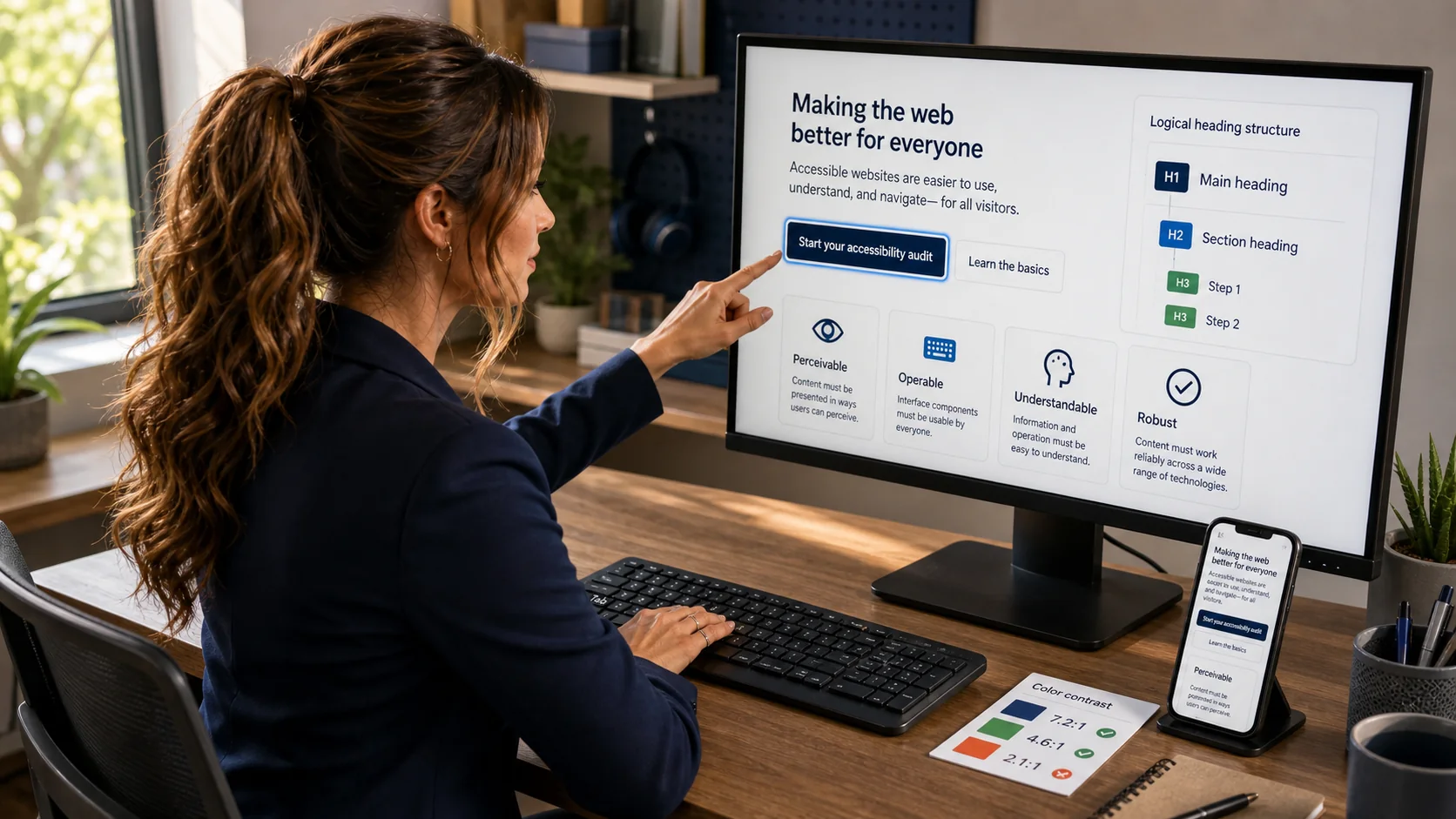
Website accessibility means making your site understandable and usable for more people—including visitors who navigate by keyboard, enlarge text, use a screen reader, need stronger contrast, or browse on a narrow phone. You do not need to be a developer to find many of the most common barriers. A careful 20-minute check can reveal problems that automated scores miss.
Why accessibility is practical, not decorative
An accessible website helps people complete ordinary tasks: reading instructions, finding a phone number, comparing services, submitting a form, or buying a product. The same habits also make pages calmer and easier to scan for visitors using a small screen, dealing with glare, recovering from an injury, or simply moving quickly.
The Web Content Accessibility Guidelines (WCAG) organize accessibility around four principles: content should be perceivable, operable, understandable, and robust. Those principles are more useful than chasing a single score. A page can pass an automated scan and still have a confusing heading order, invisible keyboard focus, vague links, or instructions trapped inside an image.
10 practical website accessibility checks
Can you use the page without a mouse?
Reload the page, then use Tab, Shift + Tab, Enter, Space, and the arrow keys. You should be able to reach links, menus, buttons, forms, dialogs, and media controls in a logical order.
Good: the current item has a clear focus outline, menus open from the keyboard, and a closed dialog returns focus to the control that opened it.
Problem: focus disappears, jumps unpredictably, gets trapped, or lands behind a sticky header or popup.
Do the headings describe the page?
Headings are an outline, not a font-size tool. Use one clear page title, then logical sections and subsections. Do not choose an H3 merely because it looks smaller than an H2.
A reader should be able to scan only the headings and understand the page. Screen-reader users often navigate by heading, so vague labels such as “More” or “Other” create extra work.
Is text readable in every state?
WCAG 2.2 calls for at least 4.5:1 contrast for normal text and 3:1 for qualifying large text, with defined exceptions. Meaningful control boundaries and states generally need 3:1 contrast against adjacent colors.
Check normal, hover, focus, active, disabled, success, and error states. Pale gray text may look elegant on one monitor and become unreadable in sunlight or at lower brightness.
Does the message survive without color?
Do not use only red for an error or only green for success. Add visible words, a useful icon or shape, and programmatic status when appropriate.
Weaker: a red border with no text.
5. Enlarge text and narrow the page
Zoom the browser to 200 percent, then test a narrow phone-sized viewport. WCAG’s reflow criterion expects non-excepted content to work at a width equivalent to 320 CSS pixels without forcing two-dimensional page scrolling. Text should wrap, controls should remain visible, and cards should stack instead of becoming tiny.
A genuinely wide data table may scroll inside its own clearly labeled container. It should not make the entire article slide sideways. Long URLs, filenames, error messages, and translated text are useful stress tests because they expose rigid boxes that ideal sample copy hides.
6. Give every image the right alternative
Alternative text depends on the image’s purpose in context:
- Informative image: describe the essential information or takeaway.
- Decorative image: use an empty alternative (
alt="") so it does not add noise. - Functional image: describe the action or destination, not the icon’s appearance.
- Chart, diagram, or instructional screenshot: put the important conclusion, steps, or data in nearby HTML text or a real table.
A filename, a pile of keywords, or “image of…” is rarely useful. Also avoid placing the only copy of a heading, warning, price, or instruction inside artwork. Text in HTML can zoom, wrap, translate, print, and remain available when images fail.
7. Inspect links and buttons out of context
Replace repeated “click here” or “learn more” links with wording that identifies the destination, such as “Read the Windows backup checklist.” Use a link to navigate and a button to perform an action. A card should not become a scripted click target if a normal linked heading will do the job.
Keep touch targets comfortably large and separated. WCAG 2.2’s minimum target-size criterion is 24 by 24 CSS pixels, with specific exceptions. For important mobile actions, a larger house target—often around 44 to 48 pixels—is easier to hit and more forgiving.
8. Test forms before and after an error
Every field needs a visible, programmatically associated label. Placeholder text is a hint, not a durable label. Required fields, formats, and privacy expectations should be explained before submission when practical.
Trigger errors on purpose. The error summary should be noticeable, the individual problem should be identified in words, and keyboard focus should move predictably. Do not clear correct information after one field fails. A generic “Something went wrong” message leaves the visitor with no safe next step.
9. Reduce motion and remove unnecessary interruption
Respect the visitor’s prefers-reduced-motion setting. Avoid motion that is required to understand or operate the page, and provide a way to pause moving or auto-updating content when applicable. Decorative entrance animations, parallax, and smooth scrolling are rarely worth creating discomfort or delaying the task.
Popups, sticky bars, chat bubbles, ads, and cookie notices can obscure both content and keyboard focus. Check the first visit on a narrow screen—not only a returning session after the popup has already been dismissed.
10. Use automated tools and human testing together
Automated accessibility tools are valuable for repeatable checks such as missing labels, some contrast problems, and invalid relationships. They cannot decide whether alt text is useful, headings tell a coherent story, keyboard order makes sense, or an error message helps a real person recover.
A practical review combines an automated scan with keyboard testing, zoom and reflow, image-purpose review, form-error testing, and at least a basic screen-reader smoke test. Treat findings as component-level defects to fix, not as one universal “accessibility score.”
A 20-minute small-business accessibility walkthrough
- Choose three pages: the homepage, a key service or product page, and the contact or booking path.
- Use only the keyboard: confirm logical order, visible focus, menu operation, and no traps.
- Zoom to 200 percent: read the page and complete the main action.
- Narrow to a phone width: look for page-wide sideways scrolling, clipped cards, hidden buttons, and overlays.
- Review headings and links: scan the outline and read link text without surrounding paragraphs.
- Turn images off or imagine them missing: confirm the task and meaning remain available.
- Submit a form incorrectly: check labels, error wording, focus, and recovery.
- Record exact problems: page, control, steps, expected result, actual result, and screenshot. Fix the owner—not just the symptom.
What “good” looks like
A useful accessibility improvement is specific and verifiable: the checkout button can be reached and identified from the keyboard; the error message names the failed field; the article reflows without page-wide overflow; the focus indicator remains visible on light and dark surfaces; the chart’s conclusion exists in text; or the contact form still works at 200 percent zoom.
Accessibility is ongoing quality work because content, plugins, themes, and embedded services change. Keep a short regression checklist for the pages that matter most, rerun it after meaningful updates, and preserve a rollback path. No badge, plugin, or single test can certify every visitor experience.
Frequently asked questions
Is website accessibility only for screen-reader users?
No. It includes keyboard access, vision and contrast needs, text enlargement, captions and alternatives, cognitive clarity, motion sensitivity, touch target usability, and robust compatibility with assistive technology. Many improvements help everyone.
Does passing an automated accessibility test mean the site is compliant?
No. Automated checks cover only part of the problem and cannot judge many contextual questions. Conformance applies to complete pages and processes, not one score or isolated component.
Should every image have detailed alt text?
No. Informative images need a useful alternative; decorative images should usually have an empty alt attribute. Functional images describe the action. The correct answer depends on purpose and surrounding context.
Do all buttons have to be 24 by 24 pixels?
WCAG 2.2’s target-size minimum is 24 by 24 CSS pixels with documented exceptions, including certain spacing and inline-text cases. Larger targets are often more comfortable for important actions, especially on phones.
Will accessibility work improve search rankings?
Do not treat accessibility as a ranking trick or promise. Its direct value is that more people can perceive, understand, and operate the site. Measure usability and task completion separately from search performance.
Primary sources
- W3C: Web Content Accessibility Guidelines (WCAG) 2.2
- W3C: Understanding Contrast (Minimum)
- W3C: Understanding Reflow
- W3C: Understanding Target Size (Minimum)
- W3C: Understanding Focus Visible
- WordPress Developer Resources: Accessibility Coding Standards
- WordPress Theme Handbook: Accessibility
- WordPress Accessibility Handbook: Alternative Text for Images
Sources reviewed August 14, 2026. This article is practical educational guidance, not a legal opinion or a site conformance certification.