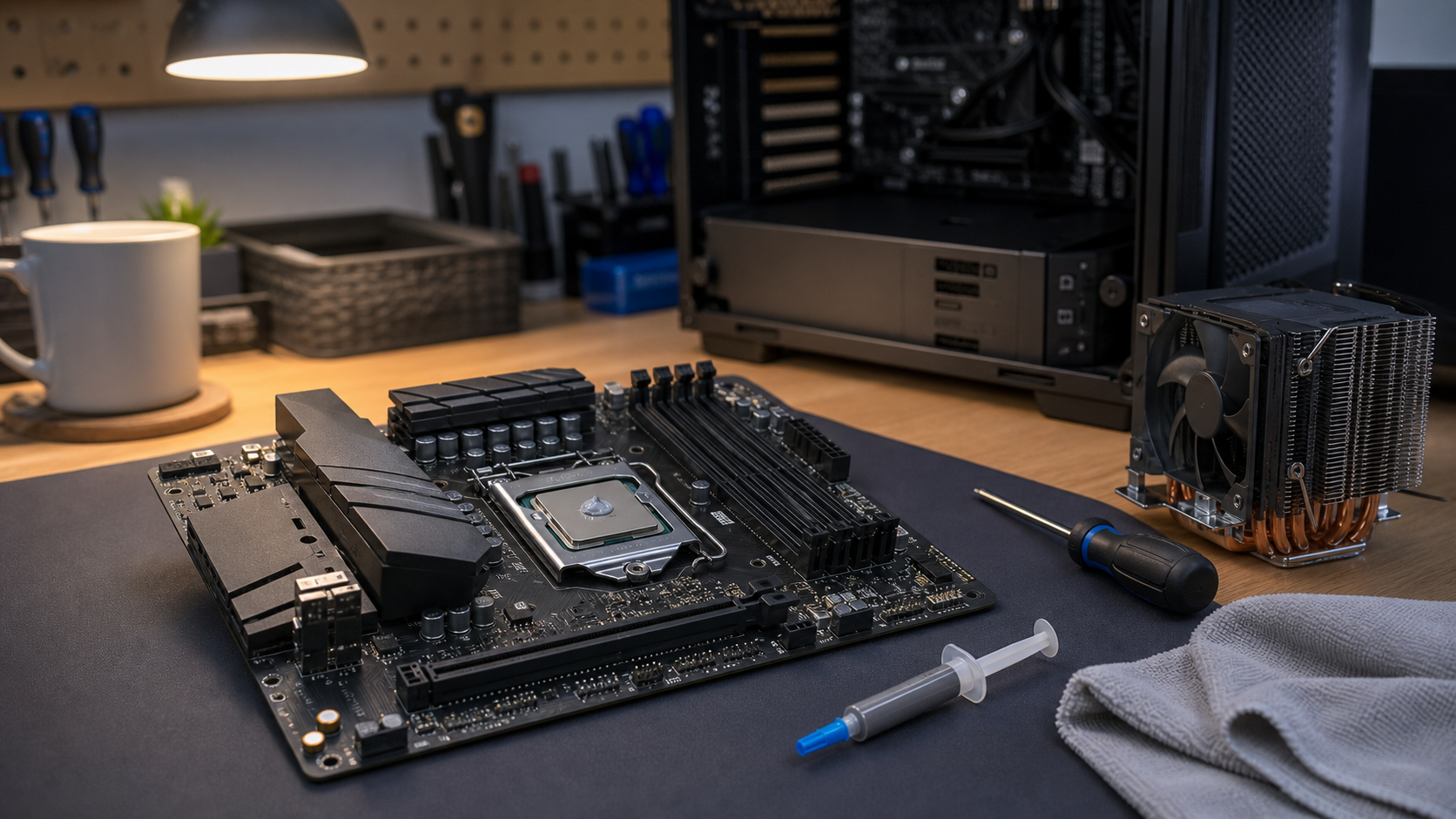
Thermal paste is one of those small PC repair details that causes a weird amount of argument online. The truth is simpler: use a good non-conductive paste, clean both surfaces, apply a controlled amount in the right area, then mount the cooler evenly. You do not need to frost the CPU like a cupcake, and you usually do not need liquid metal for a normal gaming, office, or small-business computer.
Here is the practical answer first: for most mainstream desktop CPUs, a small center dot about 3-4mm wide, or the paste maker’s recommended multi-dot pattern, is enough. The cooler’s mounting pressure spreads the paste into the microscopic gaps between the CPU heat spreader and the cooler plate. Too little paste can leave dry spots. Too much paste can squeeze out, make cleanup harder, and in cramped sockets like AMD AM5 it can get into places you do not want it.
Quick Answer: The Right Amount
- Most AMD Ryzen AM4/AM5 and mainstream Intel desktop CPUs: start with a pea-sized center dot around 3-4mm, or use the paste/cooler maker’s recommended dot pattern.
- Newer rectangular Intel CPUs: a five-dot pattern can improve coverage: one small center dot plus four smaller dots set in from the corners. Tom’s Hardware and Noctua both point users toward multi-dot guidance for larger or rectangular heat spreaders.
- Large workstation CPUs, Threadripper, Xeon workstation chips, and oversized heat spreaders: do not rely on one tiny dot. Use the manufacturer pattern or a thin manual spread so the whole heat spreader gets coverage.
- Direct-die laptop CPUs and GPUs: be more cautious. These often need full, thin coverage and can be easier to damage. If you are not used to laptop cooling assemblies, this is a good time to stop and have a repair shop handle it.
Why Thermal Paste Matters
The top of a CPU and the bottom of a cooler look smooth, but under a microscope they are full of tiny uneven areas. Thermal paste fills those gaps so heat can move from the processor into the cooler. The paste is not supposed to be a thick blanket. It is supposed to become a thin interface layer after the cooler is tightened down.
Bad paste application usually shows up as higher CPU temperatures, fans ramping louder than normal, sudden thermal throttling, or a computer that shuts down under heavy load. That does not always mean the paste is bad. Dust, weak airflow, a loose cooler, dried pump fluid in an AIO, bad fan curves, or a failing fan can cause similar symptoms. But if the cooler was removed, the paste should be cleaned and replaced before the cooler goes back on.
Best Placement Method For A Processor
For a normal desktop repair, I like a simple rule: follow the cooler or paste maker’s instructions when they are specific; otherwise use a small center dot for square mainstream CPUs and a five-dot pattern for larger rectangular heat spreaders. That keeps the advice boring, repeatable, and hard to mess up.
- Center dot: best for many common square desktop CPUs. Place one controlled dot in the center and let the cooler spread it.
- Short vertical line: useful on some rectangular CPUs where the hot silicon is stretched under the heat spreader. Keep it short and centered, not edge to edge.
- Five-dot pattern: good for newer rectangular CPUs and medium-size heat spreaders: one center dot plus four smaller dots inside the corners.
- Manual spread: useful for very large heat spreaders, direct-die laptop chips, GPUs, and unusually thick paste. Spread it thinly and evenly, then avoid touching it.
The goal is coverage after mounting, not a perfect-looking pattern before mounting. Once the cooler is installed, do not lift it back up to admire the spread. Lifting the cooler can pull air into the paste layer. If you remove the cooler, clean both surfaces and start over.
Step-By-Step: Applying Thermal Paste Safely
- Shut down, unplug, and let the system cool. Press the power button once after unplugging to discharge residual power.
- Remove the cooler carefully. Loosen screws in a cross pattern. If old paste is stuck, gently twist the cooler instead of pulling straight up with force.
- Clean the old paste. Use a lint-free cloth, coffee filter, or microfiber with 90% or higher isopropyl alcohol. Clean the CPU heat spreader and the cooler cold plate until both are dry and residue-free.
- Apply the right amount. For most mainstream CPUs, use one 3-4mm center dot. For newer rectangular Intel chips or medium-size sockets, consider the five-dot pattern. For large workstation CPUs, use the manufacturer pattern or a full thin spread.
- Mount the cooler evenly. Set it down once, keep it flat, and tighten screws a few turns at a time in a diagonal pattern.
- Reconnect the fan or pump cable. This is easy to forget. Make sure CPU_FAN, CPU_OPT, or AIO_PUMP is connected as the cooler instructions require.
- Check temperatures. After booting, check idle and load temperatures with a reliable monitoring tool. A quick benchmark or normal workload should show whether the cooler is seated correctly.
What To Avoid
- Do not reuse old paste. Once the cooler comes off, the old paste layer is disturbed.
- Do not use too much. Excess paste usually will not improve temperatures, and it makes cleanup messier.
- Do not use liquid metal unless you really know what you are doing. Liquid metal can be electrically conductive and can damage the wrong cooler materials. It is not my general customer recommendation.
- Do not scrape a CPU with metal tools. Scratches and slips create bigger problems than old paste.
- Do not ignore the cooler mount. Uneven pressure can ruin an otherwise good paste job.
Three Thermal Pastes I Would Actually Recommend
There are dozens of decent thermal pastes. The best pick depends on whether you want top benchmark performance, easy application, long-term stability, or good pricing. Based on current manufacturer information and recent third-party testing, these are the three I would put on the short list first.
1. Thermal Grizzly Duronaut: Best Premium Pick
Tom’s Hardware ranked Thermal Grizzly Duronaut as its best premium paste in its 90-paste test roundup, and Thermal Grizzly positions Duronaut as a high-performance paste built for long-term stability. This is the enthusiast pick when performance matters and spending a few more dollars on paste is not a problem.
Best for: high-performance desktop builds, hotter CPUs, gaming PCs, workstation systems, and customers who want a premium paste without stepping into liquid-metal risk.
2. ARCTIC MX-7: Best Current Value/Performance Pick
ARCTIC’s MX-7 is a newer high-viscosity paste with strong electrical insulation specs, and Igor’s Lab testing placed it in very strong company for CPU use. It is thicker than some older pastes, so the syringe may take a little more pressure, but it is a strong practical choice for people who want high performance without premium pricing.
Best for: most desktop repairs, gaming PCs, customers who want a modern paste at a fair price, and technicians who use paste regularly.
3. Noctua NT-H2: Best Easy, Reliable Mainstream Pick
Noctua NT-H2 is not just about benchmark chasing. It is easy to apply, easy to clean, widely trusted, and backed by very clear application guidance. Noctua’s own FAQ says NT-H1 and NT-H2 generally do not need to be spread manually and provides different dot-pattern recommendations by CPU size.
Best for: home users, office computers, quiet air-cooled builds, and anyone who wants reliable paste with clear instructions and included cleaning wipes in many kits.
Customer Cautions Before You Buy
- Buy from reputable sellers. Popular thermal paste brands are copied. If the price looks strange or the seller looks questionable, skip it.
- Check the tube size. A 2g to 4g tube is plenty for most home users. Larger tubes make sense for shops or frequent builders.
- Do not chase one-degree differences too hard. Cooler mounting, case airflow, dust, fan curves, and room temperature often matter more than tiny paste differences.
- Do not use old mystery paste. If a tube has separated, dried out, or has been sitting open for years, replace it.
When Should You Replace Thermal Paste?
Replace paste any time the cooler is removed. For a stable desktop that has never been opened, you do not need to repaste on a calendar just because the internet says so. Consider replacing it when temperatures are clearly worse than they used to be, the system is several years old and running hot, the cooler was disturbed, the fans are clean but still loud, or you are already doing a cooler upgrade.
For laptops, small form factor PCs, and business machines, the bigger question is whether the cooling system can be opened safely without damaging clips, pads, fan cables, or warranty seals. If a laptop is overheating, cleaning the heatsink fins and fan path may matter as much as the paste.
Need Help With An Overheating PC?
If your PC is running hot in Port Saint Lucie, Jensen Beach, Fort Pierce, or Vero Beach, The IT Guys can check the cooler mount, dust buildup, fan health, airflow, and thermal paste instead of guessing. A paste job is simple when everything goes right, but an overheating computer can also point to a failing fan, clogged heatsink, weak AIO pump, or poor case airflow.
FAQ
Is a pea-sized amount always right?
No. It is a good default for many mainstream desktop CPUs, but larger rectangular CPUs and workstation chips may need a multi-dot pattern or thin spread. Follow the cooler or paste maker’s instructions when they are specific.
Should I spread thermal paste with a spatula?
Usually not for mainstream desktop CPUs. Cooler pressure does the spreading. Manual spreading is more useful for large heat spreaders, direct-die chips, GPUs, and certain thick pastes.
Can too much thermal paste damage a PC?
Most normal non-conductive paste is forgiving, but excess paste can make a mess around the socket and trap cleanup problems. Liquid metal is a different category and can be risky around electronics and some cooler materials.
Do I need the most expensive thermal paste?
No. A good mainstream paste applied correctly is enough for most systems. Premium paste makes more sense for hot CPUs, overclocked systems, workstations, or builds where every few degrees matter.